
How to Create Catalogue Appliances
Use catalogue appliances to track appliances that you buy and install onsite, such as ovens, dishwashers, and refrigerators.
Please Note: this article assumes you are already familiar with configuring your catalogue settings, and creating catalogue materials and services.
Note: Appliances is a paid feature, if you're interested in taking advantage of this module, please reach out to help/support
In this article:
Configuring Your Catalogue Appliance Settings
Creating an Appliance in your Catalogue
Importing and Exporting Appliances
Managing Lead Appliance Specifications
Configuring Your Catalogue Appliance Settings
Before you start creating appliances, you should configure your catalogue appliance settings by following these steps:
-
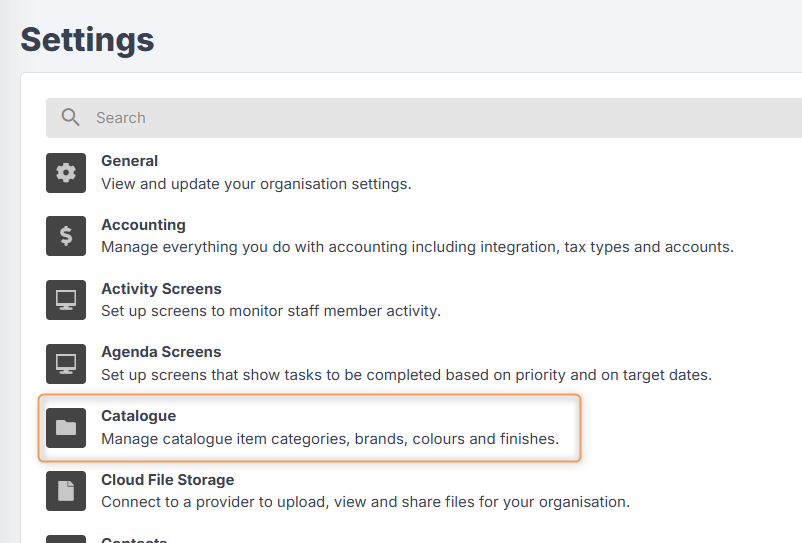
From the User Menu Panel on the left, navigate to Settings > Catalogue:
-
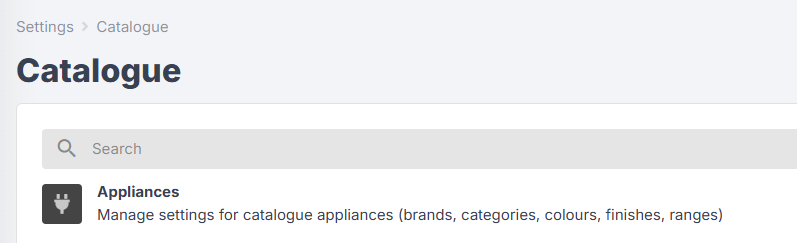
Click Appliances:
-
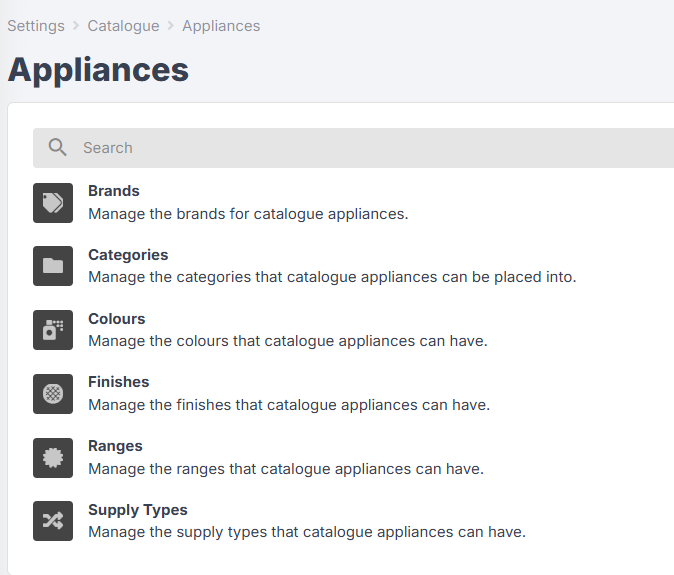
From here you can add brands, categories, colours, finishes, ranges, and supply types for your appliances. These are managed separately from the rest of your catalogue. The most important to set up are categories and supply types.
-
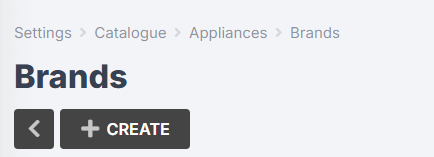
To add a new brand, click on Brands from the appliance settings menu, then click Create:
-
Enter a name (e.g. "Fisher & Paykel"), then click Create again.
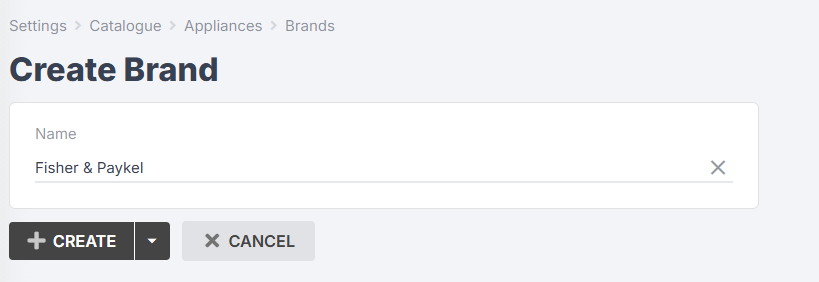
This process is the same for colours, finishes, and ranges.
-
To add a new category, click on Categories from the appliance settings menu, then click Create:
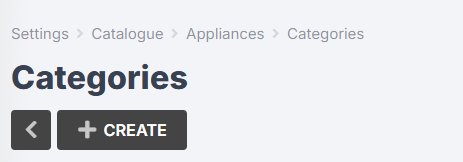
-
You will be redirected to the Create Category form:
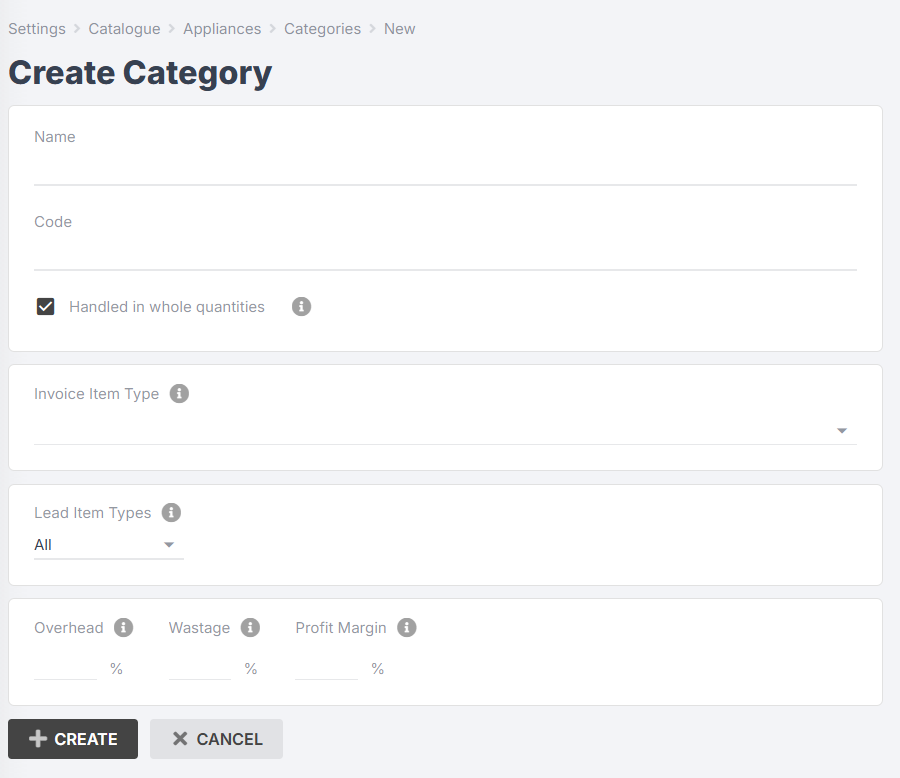
- Enter a name (e.g. "Dishwasher").
- Leave the code field blank.
- Ensure Handled in whole quantities is selected.
- Select an invoice item type if applicable.
- You can leave Lead Item Types set to All, or you can choose which item types this appliance category should be restricted to. For example, your "Dishwasher" category should probably only apply to your "Kitchen" item type.
- You can choose to override your default material pricing for this category by entering values into the Overhead, Wastage, and Profit Margin fields. Leave these blank (i.e. do not enter "0%") if you want to use your default pricing for this category.
- Click Create again.
You can click into your appliance category at any time to edit it.
What are supply types?
Appliance supply types are used to indicate where the appliance is being supplied from. Some common supply types include "New," "Existing," and "Client Supplied".
-
To add a new supply type, click on Supply Types from the appliance settings menu, then click Create:
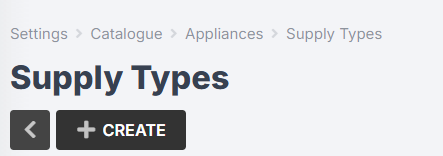
-
Enter a name (e.g. "New").
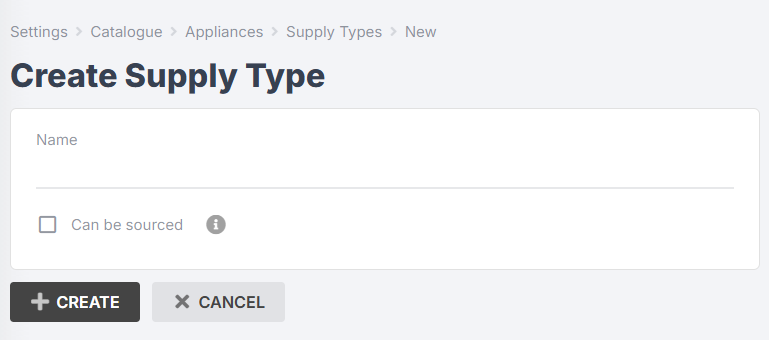
- Tick the box for Can be sourced if this appliance type can be sourced from inventory or purchase order (e.g. it is an appliance that you will supply to the customer).
- Click Create again.
Creating an Appliance in your Catalogue
To create an appliance, follow these steps:
-
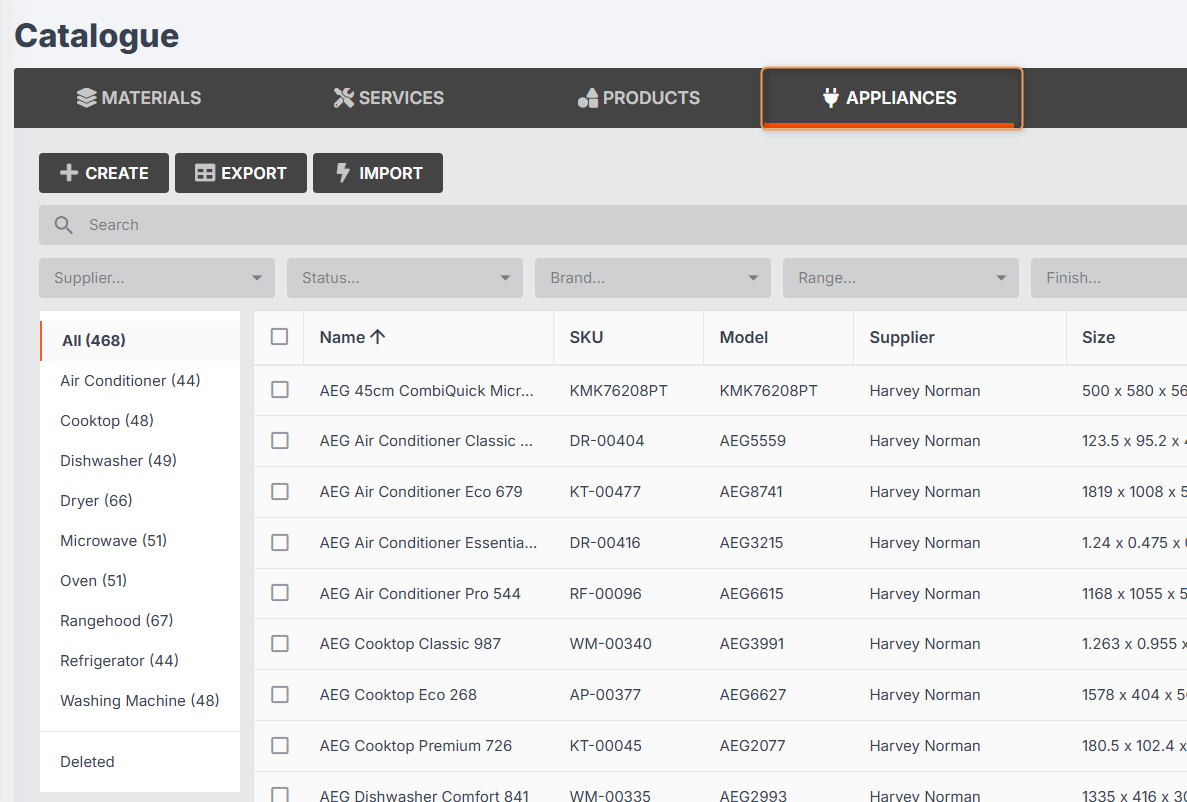
From the User Menu Panel on the left, navigate to Catalogue > Appliances:
-
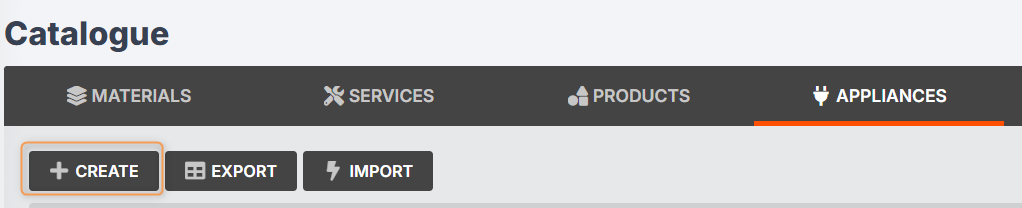
Click Create:
-
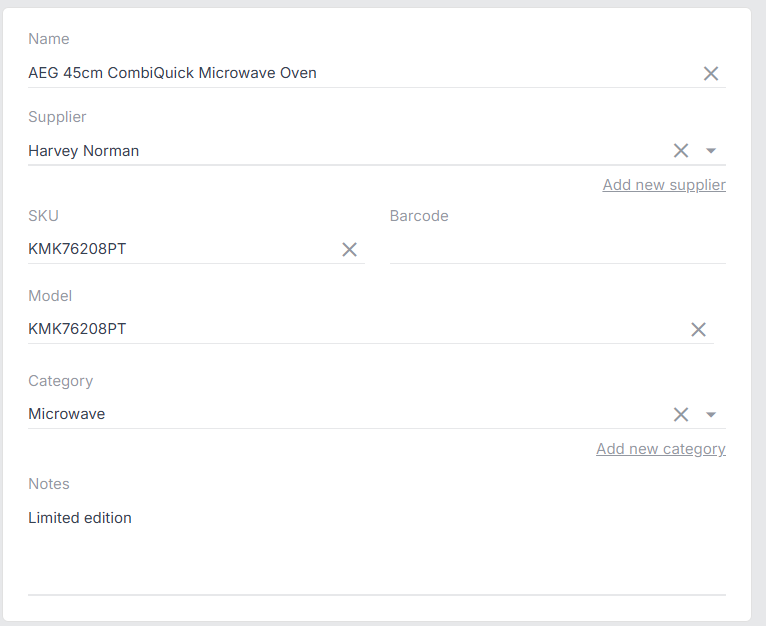
Enter your appliance name, supplier, SKU (if required), barcode (if required), model, category, and notes (if required).
-
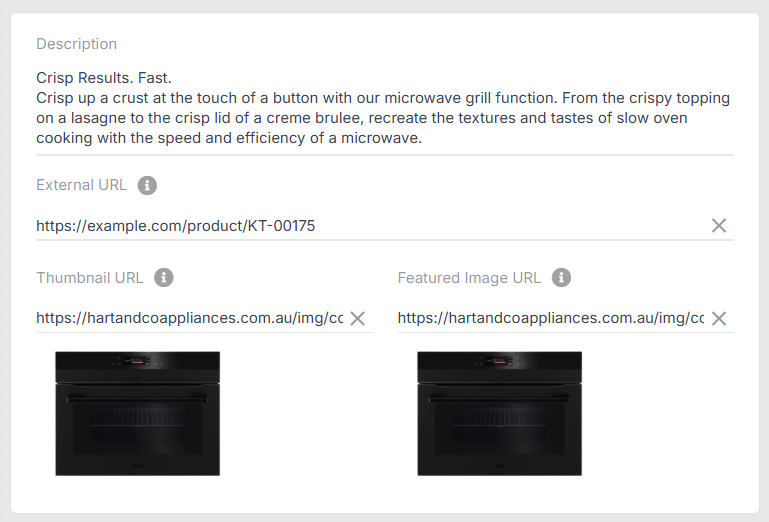
You can add a description, external URL, thumbnail URL, or featured image URL if needed. (Learn More)
-
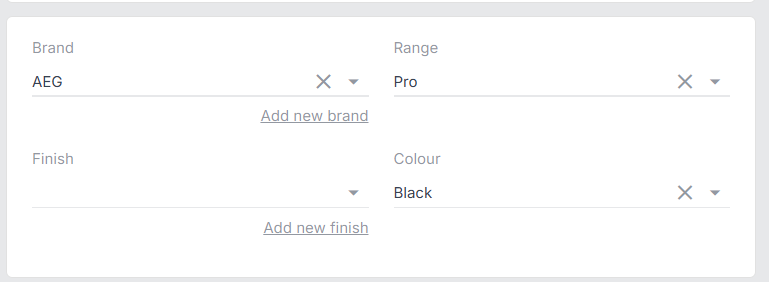
You can add a brand, range, finish and colour if needed.
-
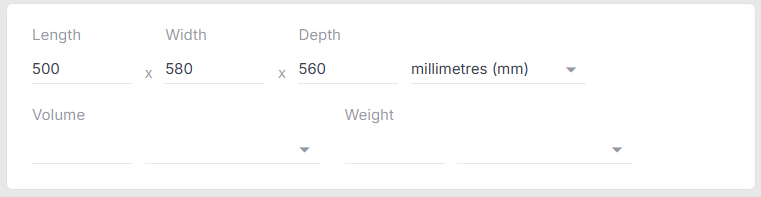
You can add dimensions (length, width, etc.) if needed.
-
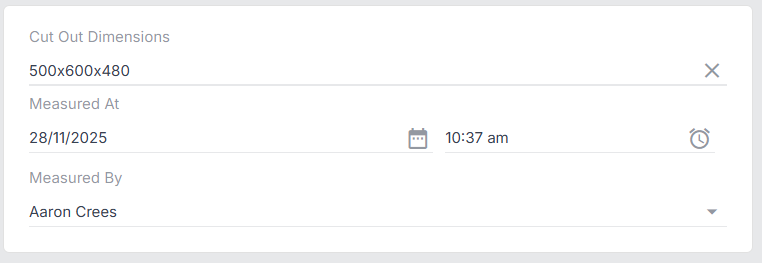
For appliances that have doors set into room panels (such as ovens and dishwashers), you should add a cut out dimension to ensure your drafters have the information they need to dimension the panel properly. In the Cut Out Dimension field, add your measurements (e.g. "85 x 60 cm"). You can also add the date/time these dimensions were measured, and the staff member who took the measurements.
-
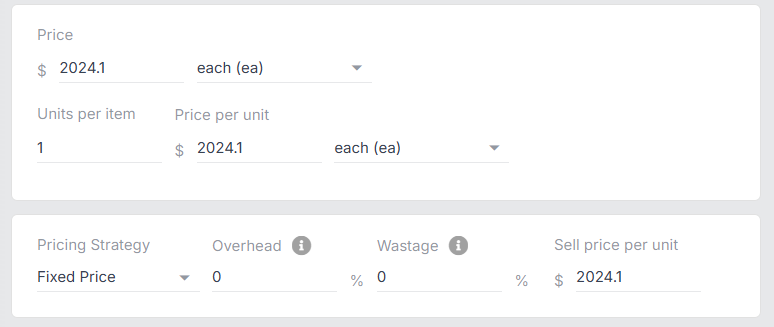
Add a price and units per item (this will generally be "1"), and set your pricing strategy, overhead, wastage & profit margin.
-
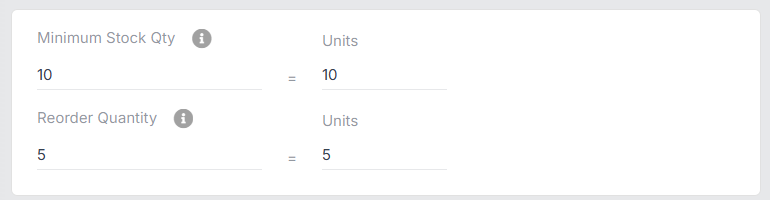
You can set a minimum stock quantity and/or reorder quantity if needed. (Learn More)
-
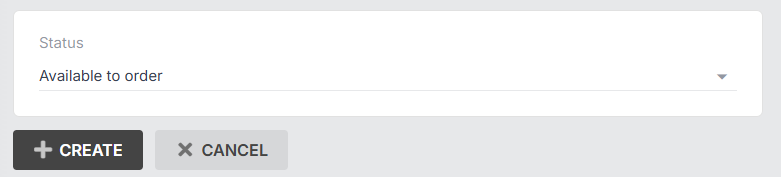
Set your status to available to order or not available to order.
- Click Create again!
You can click into your appliance at any time to edit it.
Your appliances can now be added to quotes and presets!
Importing and Exporting Appliances
As with catalogue materials, you can import and export appliances using the buttons at the top of your Catalogue > Appliances tab:

To export catalogue appliances, follow these steps:
- Click Export (shown above) then Create:

-
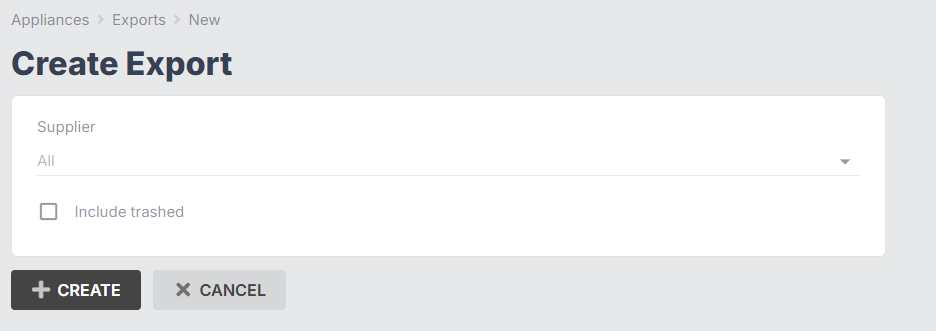
Select a supplier or leave as All, tick the box for Include trashed if you want to export deleted appliances, then click Create again:
-
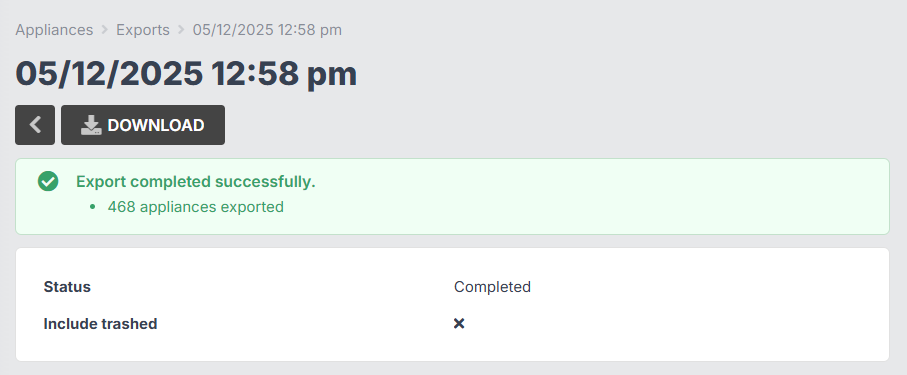
Once the export is completed, you can view an export summary, and download your CSV file if desired:
To import catalogue appliances, follow these steps:
-
Click Import (shown above), then Create:
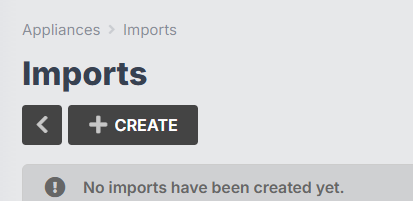
- Click Download Sample CSV:
-
Once your CSV file has downloaded, fill it in with your catalogue data.
Pro Tips for your CSV Data
Follow these guidelines to reduce the chance of errors when uploading.
Supplier Names: Supplier names must: 1. Already exist in your contacts list, and 2. Match exactly.
Example: If your contact is "Fisher & Paykel", you cannot enter "Fisher and Paykel" - it must be "Fisher & Paykel".
Pricing Fields: Must only contain numbers and decimal points. No currency symbols, and no more than 2 decimal places.
Sell Price Strategy or Fixed Price: If you set the Sell Price Strategy column to Variable to utilise Jobman's automation, make sure there is no data in the Fixed Price column. You cannot have both fields filled out.
Unit ID Columns: Any column that has Unit ID in the title is case sensitive and can only use the following variables:
Length - kilometer, mile.
Volume - litre.
Mass - kilogram.
Quantity - each, sheet, roll, piece, square_metre, lineal_metre, pack, pair, minute, hour, day, week.
IMPORTANT:
Delete entries not in this file - If you are exporting and reimporting your CSV file, you can click this checkbox, and upon re-import, the materials NOT listed in your CSV will be deleted from your catalogue.
Please Note: The following columns must be populated for import:
- Supplier (must be a contact prior to import)
- Price*
- Price Unit Id*
- Units per Price*
- Unit Price*
- Unit Price Unit Id*
- Selling price strategy (Variable or Fixed) - Variable is recommended
- Name
- SKU (not required but recommended)
- Category
*The only exception is if you have filled in the Price Matrix column; then you should leave these blank.
What is Profit Percentage?
The Profit Percentage column refers to Profit Margin, not Profit Mark-up.
The difference is that a mark up percentage is proportionate to the cost, whereas the margin percentage is proportionate to your revenue.
For example, if you buy a product for $10 and sell it for $12, that $2 difference gives you a 20% mark-up (2 out of 10), but only a 16.66% profit margin (2 out of 12).
Jobman is set up to use margin percentage, not mark up percentage. You can use an online margin calculator to help you work out your margin percentage based on cost and revenue amounts.
-
Once you've completed your CSV file, you can now upload it to import your items. Drag-and-drop or click to upload your file.

- Select any applicable checkboxes under Advanced.
- Click Create.
- You will be taken to a summary page to confirm the details.
- Once you're ready to import, click Start.
Once complete, you will see an Import Successful notification with a summary of the import and any actions that were taken.
Managing Lead Appliance Specifications
Lead Appliance Specifications allow you to either create a list of appliances that you will be quoting or supplying for your customer, or to manage appliances supplied by the builder or customer themselves.
This specialised form has two primary options:
- To create a blank PDF for your customer/builder to fill out
- To create a populated PDF showing the customer's selections
When creating your appliance specifications, each appliance will have a specific supply type, indicating who is responsible for ordering/selling the appliances, and allowing Jobman to identify which job appliances should be sourced.
-
To create a lead appliance specification first open a lead, and go to Resources > Appliance Specifications
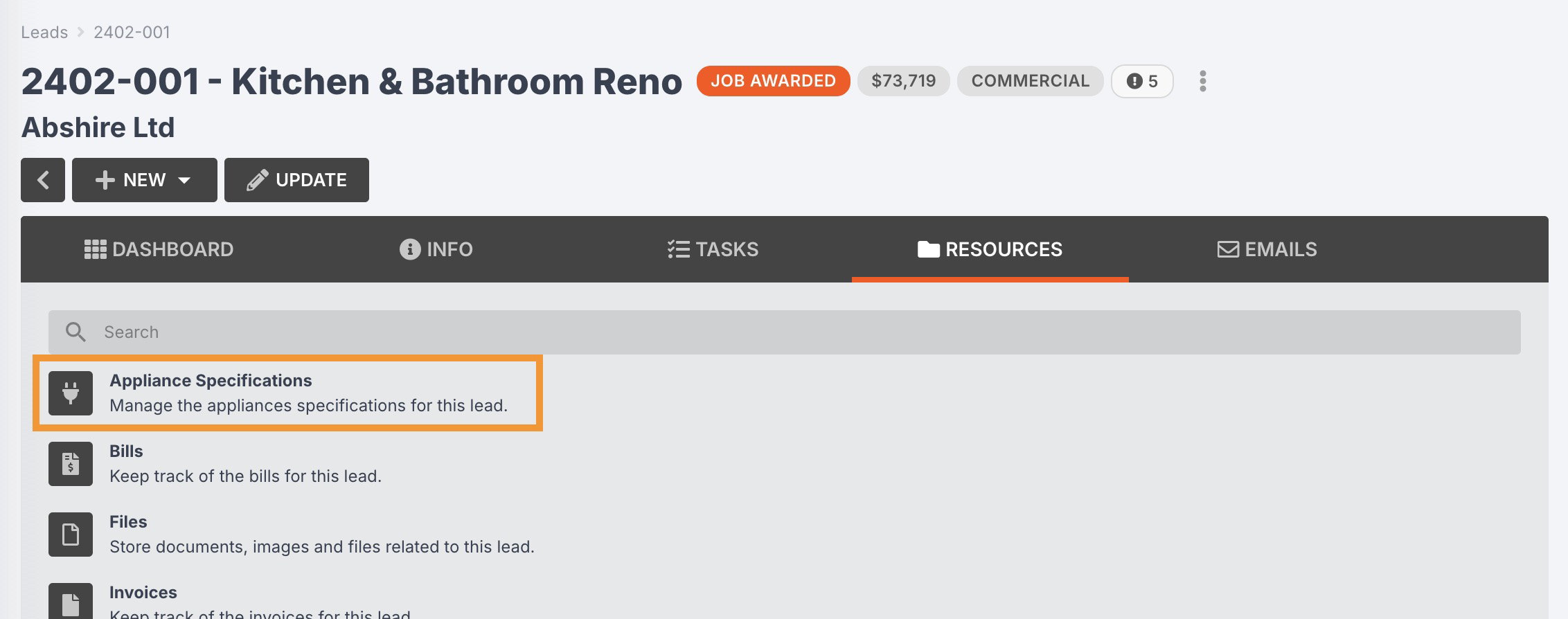
- Initially your appliance specs will be empty. Click Update.
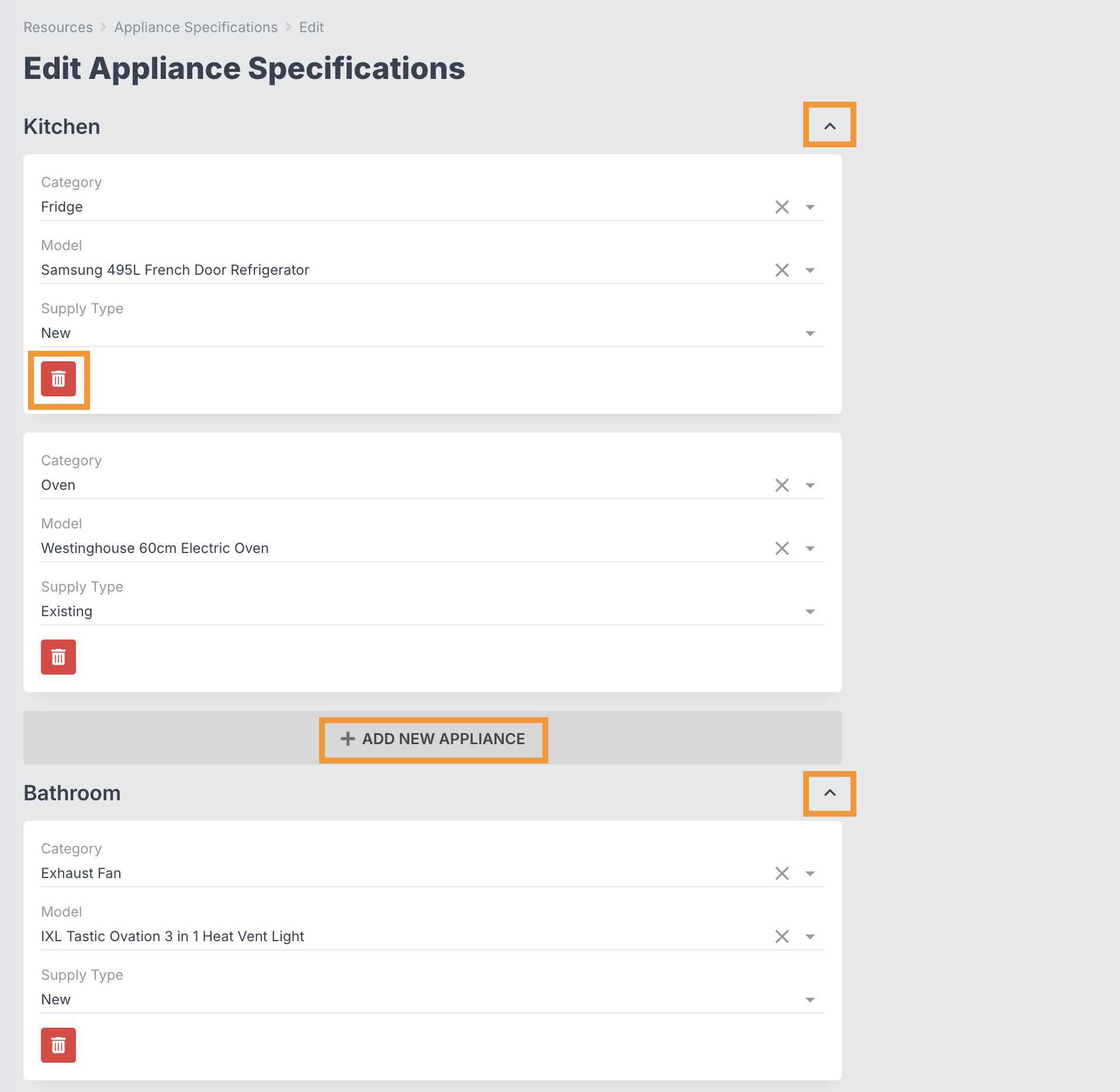
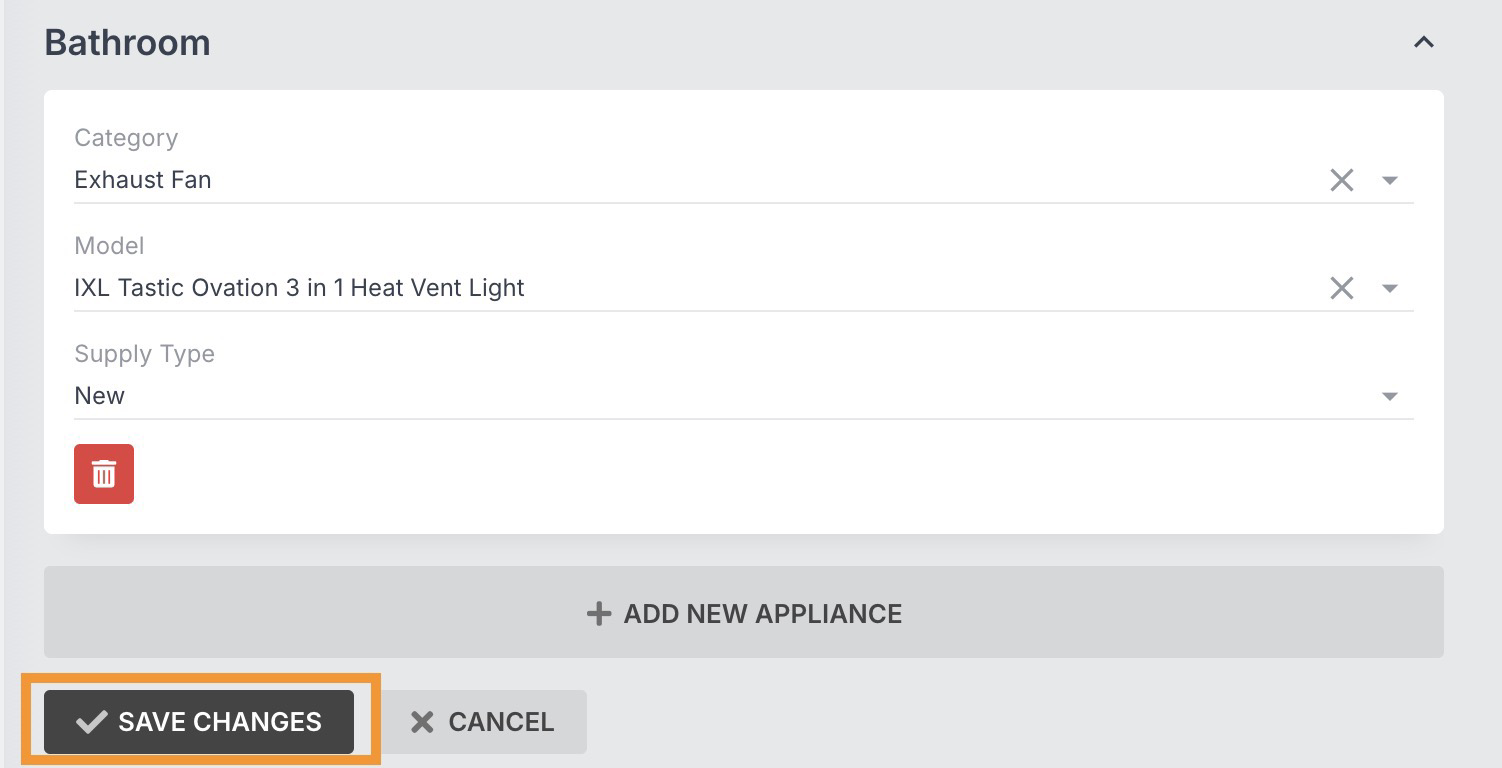
- In the appliance spec form, you will see a collapsible section for each of your lead items.
- In each item, you can click Add New Appliance to add as many appliances as you want to that section.
- You can also remove unwanted appliances by clicking the red delete icon.
- By default, the category dropdown will automatically filter based on the item type (room) from your appliances settings
- Once you select a category, the list of appliances will automatically update to only show relevant models for that category.
-
Each appliance must have a supply type selected, which you can configure in your catalogue settings
-
Once you've finished configuring your appliance specs, click Save Changes
When viewing your lead appliance specs, you can print or export a PDF by clicking the PDF button and selecting a template.


When you go to create a job from this lead, you will have the option to automatically copy appliances from your lead appliance specifications to the job, irrelevant of whether or not you added them to your quote.
This will ensure that the job has all appliances that need to be sourced and/or delivered, however, any appliances that are not quoted will not be include in the job's estimated value.

Once the job has been created, you can navigate to Resources > Appliances to see the automatically populated appliances. You can manage job appliances the same way you can manage job materials

NOTE: In order to create lead appliance specifications, you must have configured at least one lead item first.