Populating Material Sheet Quantities with Cabinet Vision and JMSync
Use JMSync and Cabinet Vision to quickly update your Job Resource Materials list in Jobman with nested sheet quantities from Cabinet Vision for accurate job costing and inventory tracking!
Please Note: CAD/CAM integration is a paid extra and must be added to your subscription before proceeding. Learn More
See also: JMSync - Cabinet Vision Integration
How to Populate Job Resource Materials (Sheet Quantities) Using Cabinet Vision and JMSync
Install JMSync 1.0.4 if you have not already done so.
Important: Check your catalogue material categories!
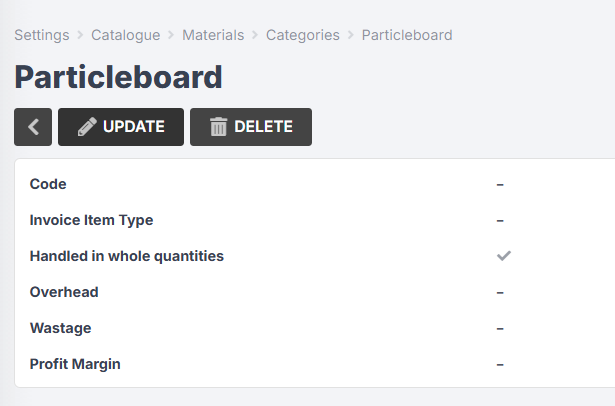
To ensure your sheets populate correctly in Jobman, you need to make sure your sheet materials belong to catalogue material categories that have Handled in whole quantities enabled. You can check this in Jobman by navigating to Settings > Catalogue > Materials > Categories > [Category Name]:
Read More: Catalogue Settings
- Open JMSync and navigate to Settings > Add New.
- Type a name that describes what the button you are creating is for, e.g. “Populate Sheets CV(Version)”.
- Set the Connection Method to SQL Database.
- Click Load Tables, and navigate to Hexagons NC Database > PSNC.
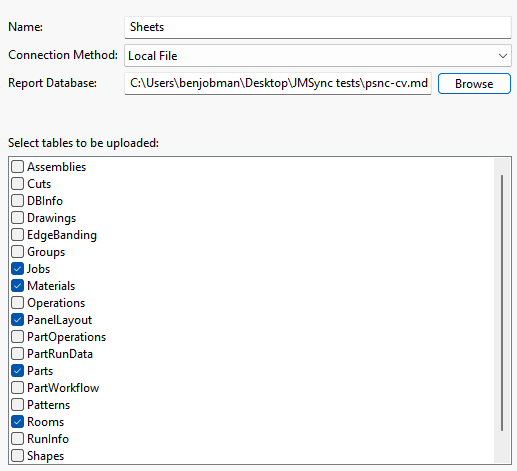
- Select Jobs, Materials, PanelLayout, Parts, and Rooms (see below).
- To populate the PSNC file in your NC Database, you must optimise a job so that you can see this screen:

- You can verify that the file is being updated by checking the time stamp in the Date modified column (see below):

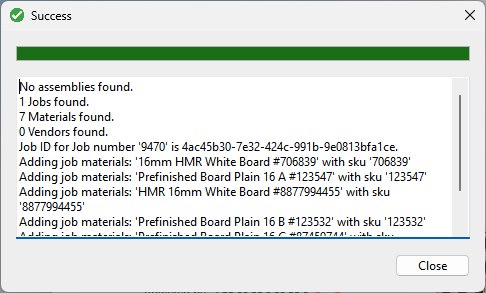
If your job number is the same in Cabinet Vision and Jobman, you should see a Success summary:
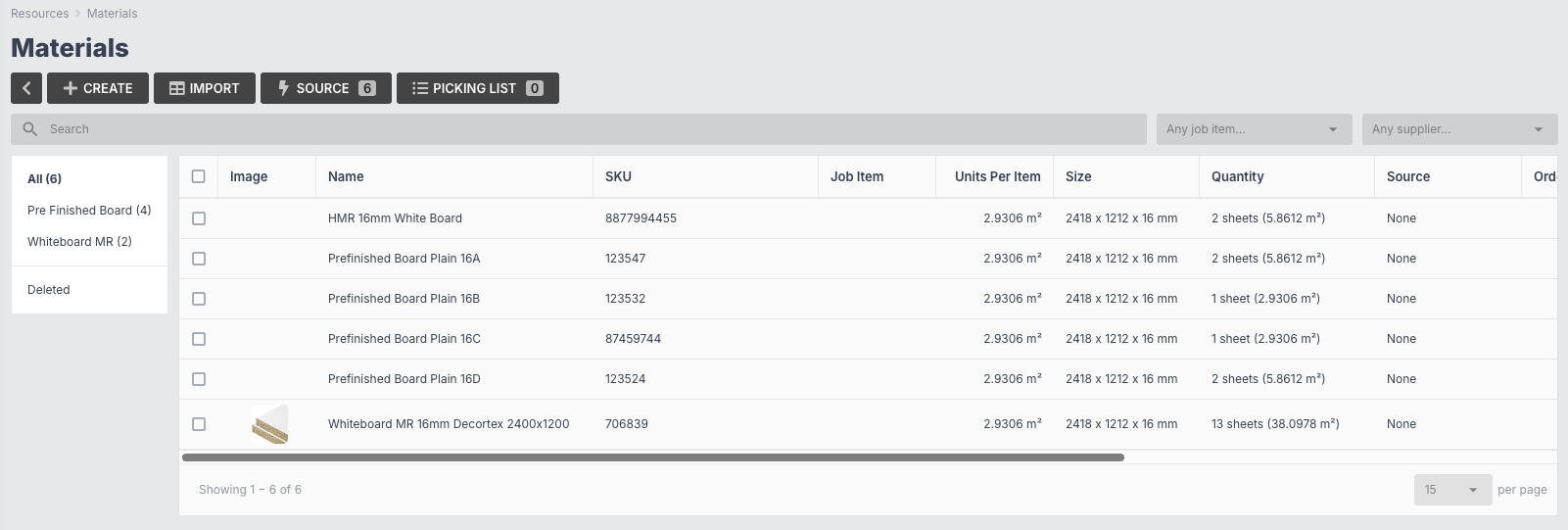
- In Jobman, navigate to Jobs > [Job #] > Resources > Materials. You should see that the list has populated from Cabinet Vision: