
How to Convert Your Product Library and Materials to Imperial Measurements
Jobman comes with a prebuilt product library which you can use for fast quoting straightaway. By default, the product measurements in this library use the metric system (cm and mm).
If you need to change your product library to imperial measurements, you will need to do this in two stages: products, then materials.
How to Convert Your Product Library to Imperial Measurements
-
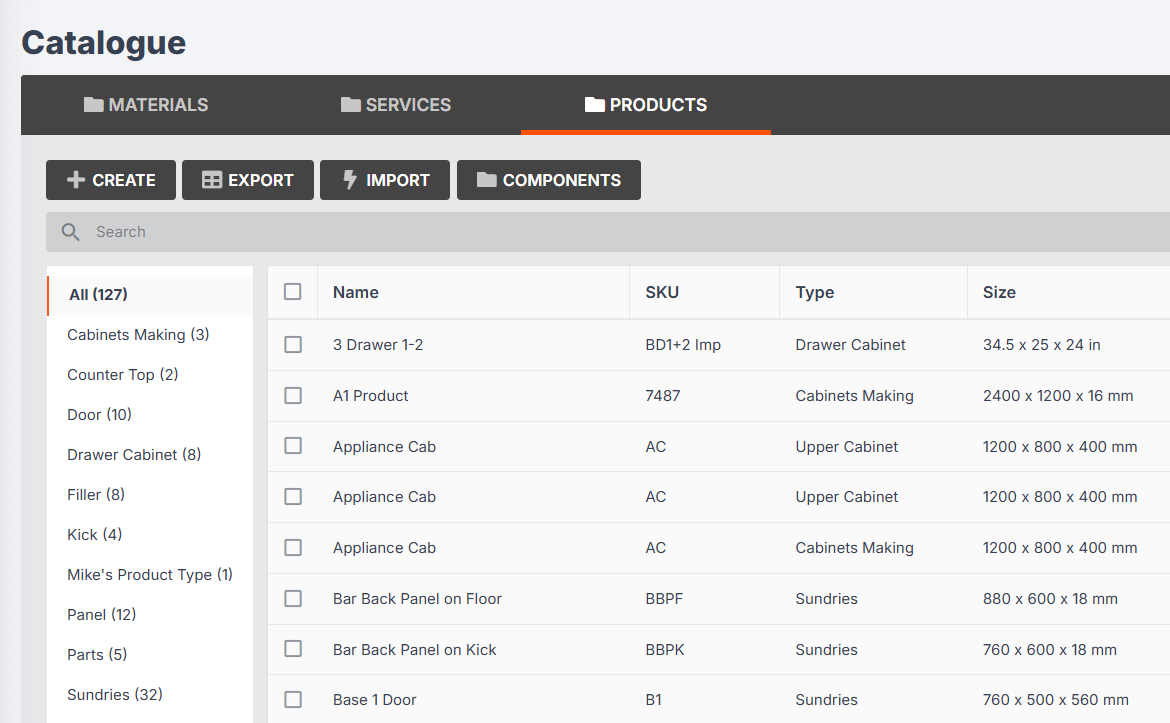
Go to Catalogue > Products:
-
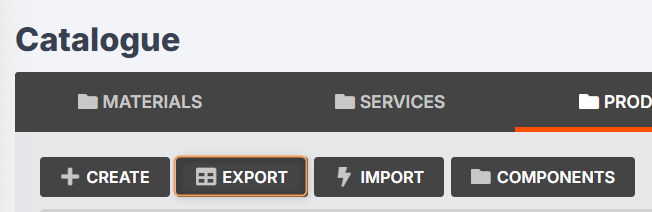
Click Export:
-
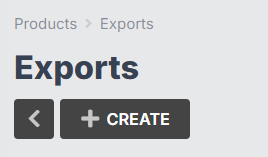
Click Create:
-
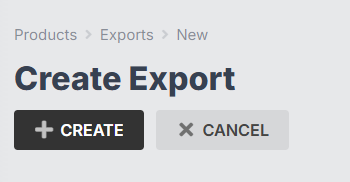
Click Create again:
-
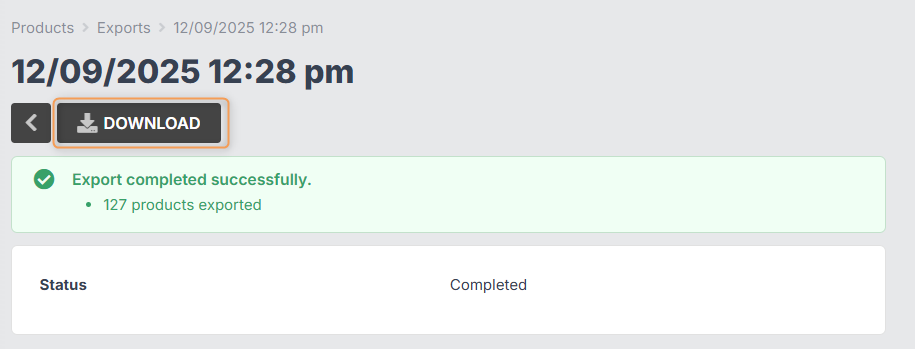
Once the export has finished, click Download:
-
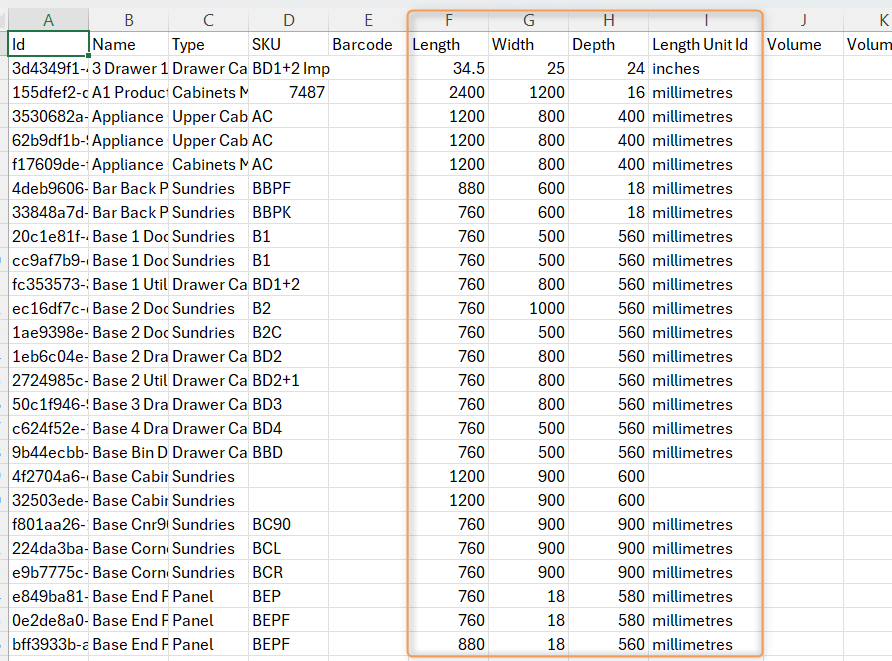
Open the downloaded CSV file, and in the Length, Width, Depth, and Length Unit Id columns (F, G, H & I), change the metric measurements to the corresponding imperial measurements, as well as "millimetres" to "inches" or "feet". (You can use an online calculator, e.g. https://www.calculator.net/conversion-calculator.html).
Note: At this point you might also want to edit the operation times at the right of the spreadsheet, to suit your business. DO NOT MAKE ANY CHANGES IN THE "Id" COLUMN (column A).
- Save the CSV file.
-
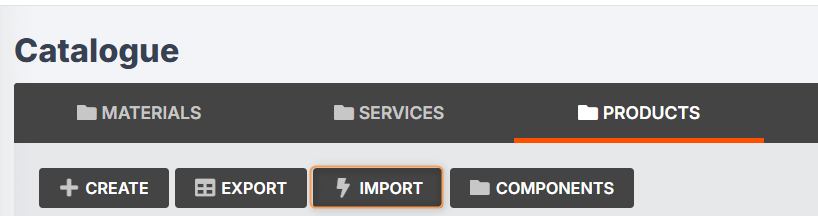
Go to Catalogue > Products again, and click Import:
-
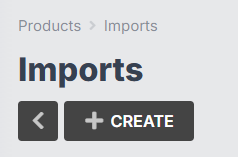
Click Create:
-
Click and drag your edited CSV file into the File box, then click Create again:
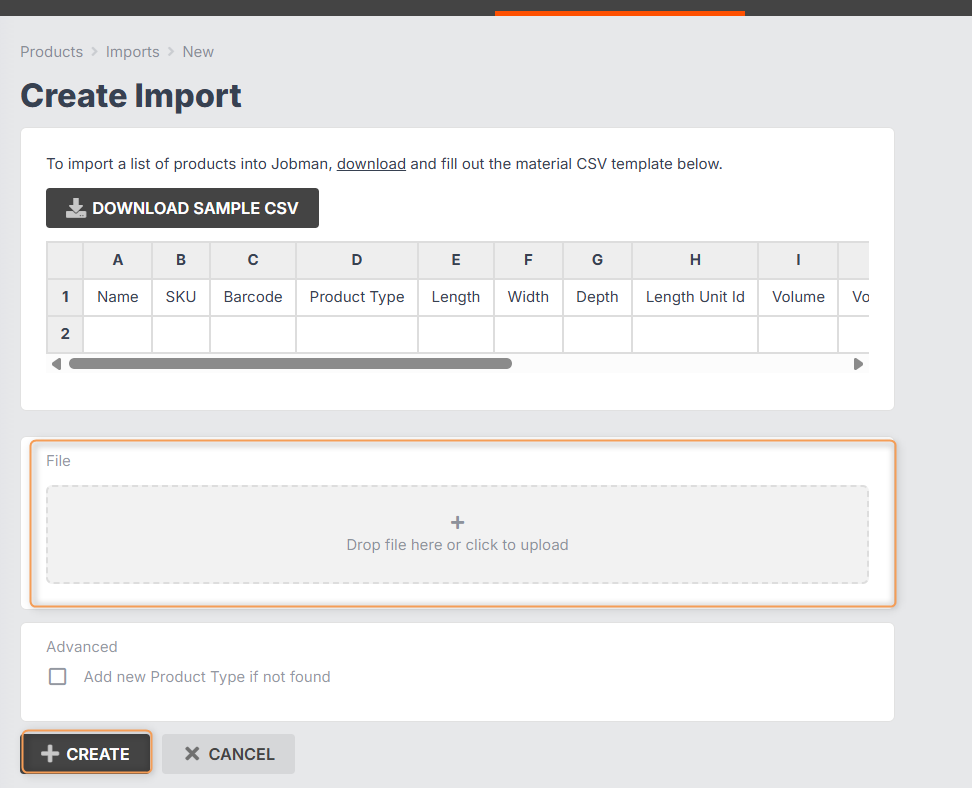
- Once your import has finished, you should see that your product library has been updated with imperial measurements!
How to Convert Your Materials Library to Imperial Measurements
Important: Your product parts and components are linked to your quote pricing materials through your styles. Therefore, you will need to update your catalogue materials so that all your products parts/components will also show correct imperial measurements.
(Learn more about product parts, components, and styles.)
-
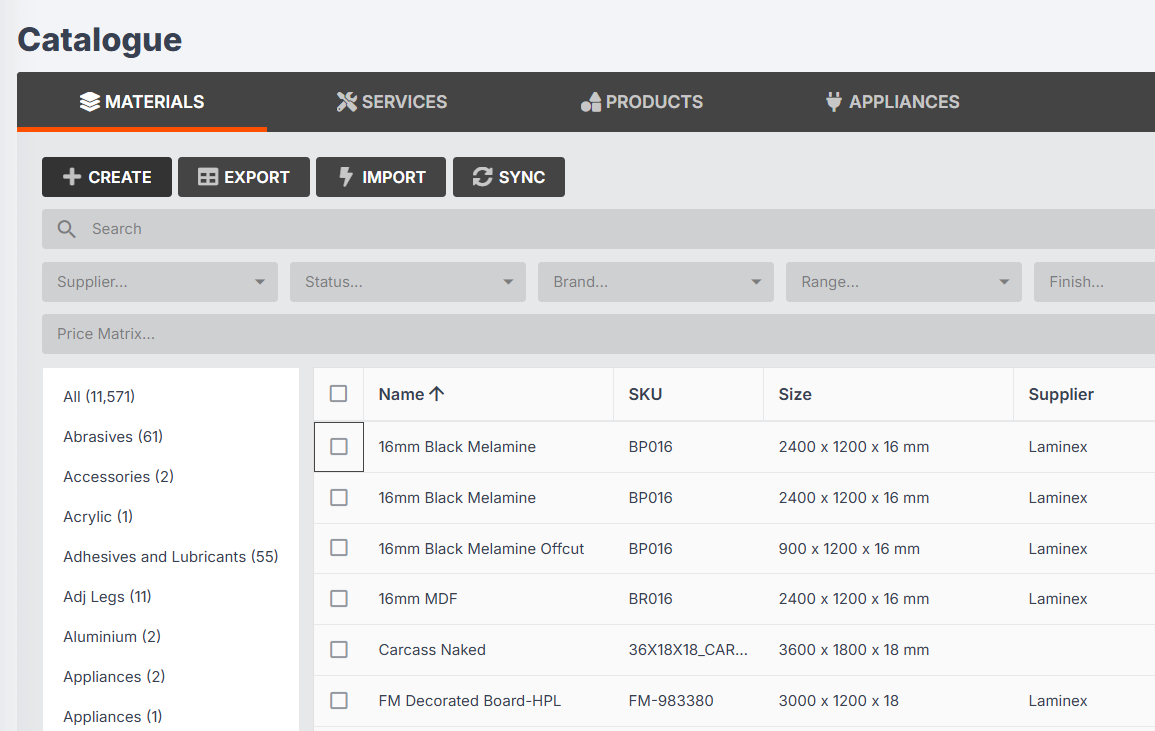
Go to Catalogue > Materials:
-
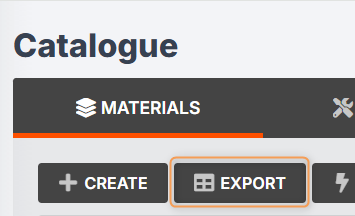
Click Export:
-
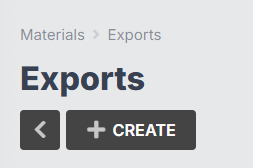
Click Create:
-
Click Create again:
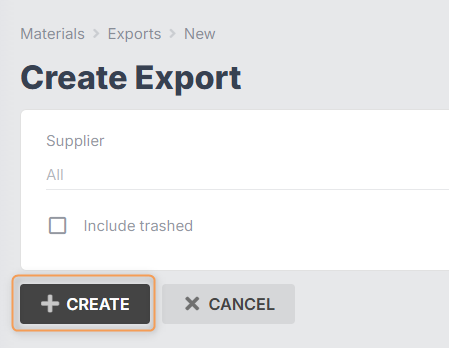
Leave Supplier set to All, and do not tick the Include trashed checkbox.
-
Once the export has finished, click Download:
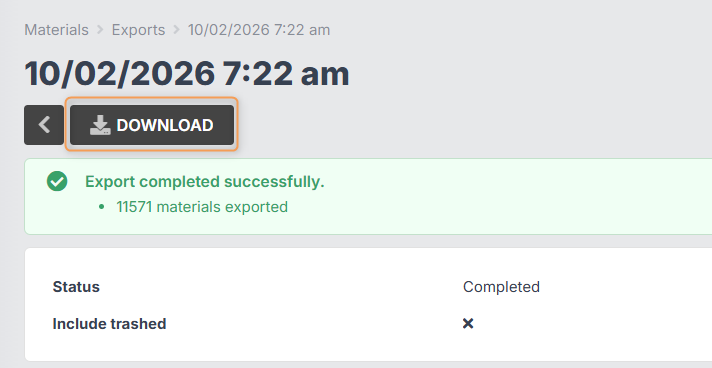
- Open the downloaded CSV file, and make the following changes:
- Change the Length, Width, and Depth columns (K, L, M) to the corresponding imperial measurements. (You can use an online calculator, e.g. https://www.calculator.net/conversion-calculator.html)
- Change the Length Unit Id column (N) to "inches" or "feet".
- Change the Optimisation column (S) to "square_feet" or "lineal_feet".
- Change the Units per Price column (X) to the corresponding imperial measurements. (E.g. 2.88 needs to be changed to 31 if you are converting square metres to square feet.)
- Change the Unit Price Unit Id column (Z) to "square_feet" or "lineal_feet".
Note: At this point you will also want to double-check your Price, Price Unit, Unit Price, Overhead Percent, Wastage Percent, and Profit Percent columns (V, W, Y, AC, AD, AE).
DO NOT MAKE ANY CHANGES IN THE "Id" COLUMN (column A).
Learn More: FAQ: Catalogue, Pricing, Units of Measurement
- Save the CSV file.
-
Go to Catalogue > Materials again, and click Import:
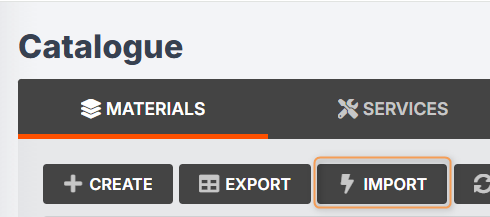
-
Click Create:
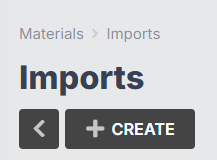
-
Click and drag your edited CSV file into the File box, then click Create again:
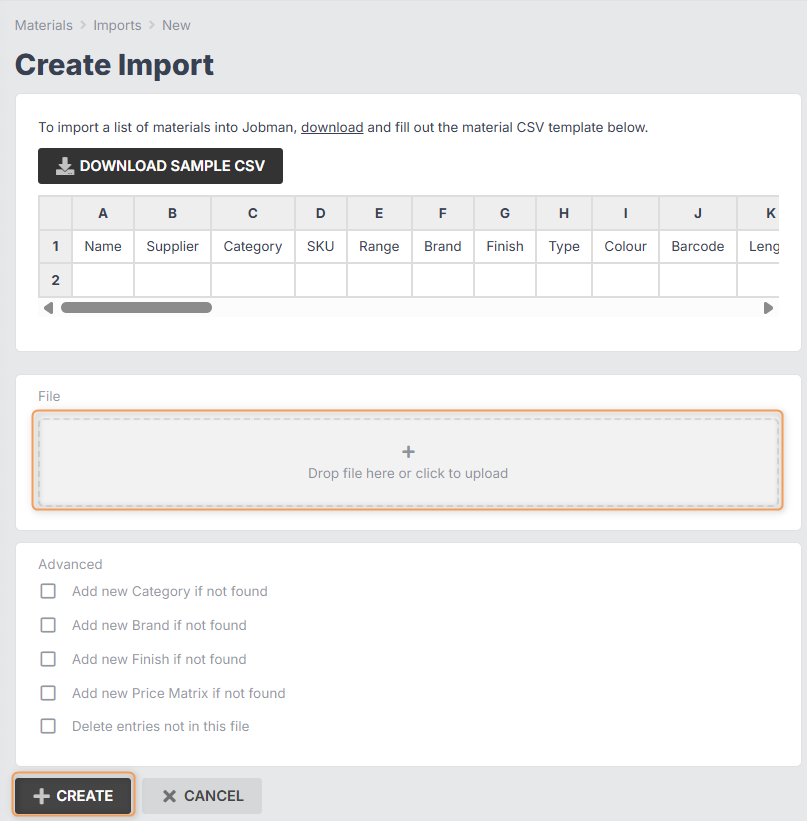
- Once your import has finished, you should see that your product library has been updated with imperial measurements!
At this point, we recommend creating a test quote and adding some products to it, to check that all your measurements and costings are coming through correctly.
Learn More: How to Add and Edit Products in a Quote