
Connecting to Dropbox Business
If you are connected to Dropbox Personal, or another Cloud File Storage provider, or if this is your first time connecting Jobman to a Cloud File Storage provider, follow the steps below to connect Jobman to Dropbox Business!
We recommend that the connection should be performed by a Dropbox administrator user, to ensure Jobman has the relevant permissions to create and modify files inside the team folder. This is not a requirement, but if the user that makes the connection has their permissions revoked for that team folder in Dropbox, or are removed completely from the Dropbox team, Jobman will also lose access to these files and you'll need to reconnect.
Before you connect to Dropbox Business, you will need to have a team folder set up for the "root" of your organisation's base directory, before. So if your base directory is "/Jobman Files" there will need to be a team folder in Dropbox called "Jobman Files". If your base directory is "/Documents/Jobman FIles" there will need to be a team folder called "Documents", and Jobman will automatically create "Jobman Files" within it (if it doesn't already exist).
If there is no team folder set up, you will see an error message like this:

-
If you are already connected to Dropbox Personal or another Cloud File Storage provider:
Go to Settings > Cloud File Storage:
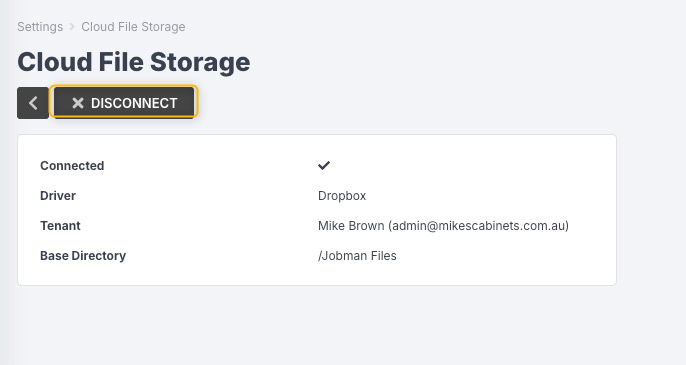
Click Disconnect.
- In Settings > Cloud File Storage, if your driver is already set to Dropbox, you can click Connect to Dropbox:
-
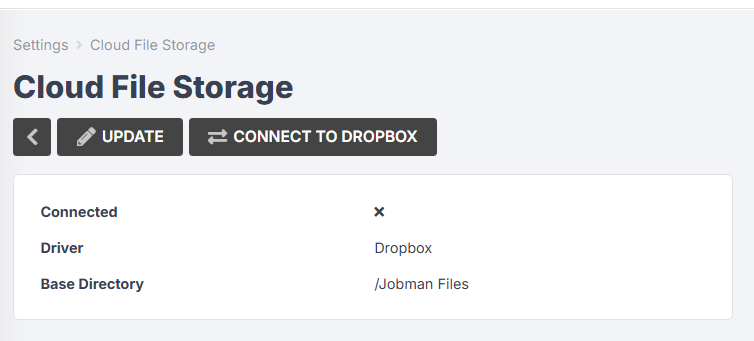
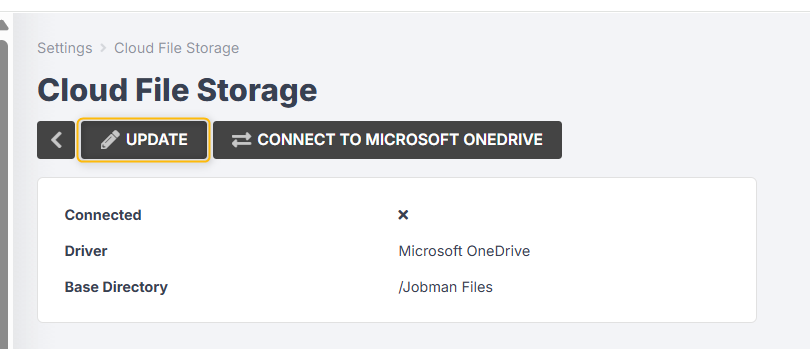
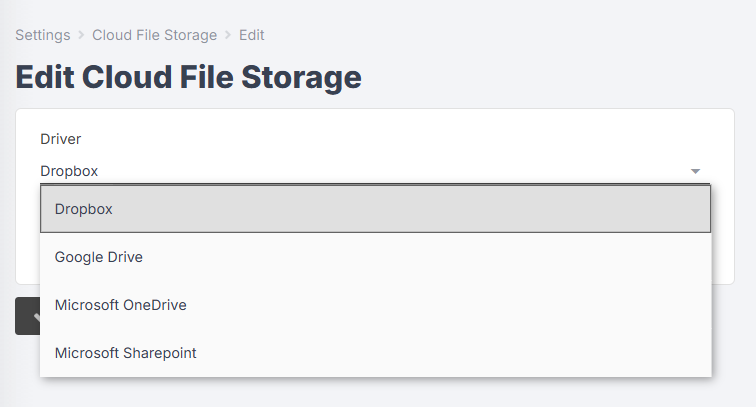
Otherwise, click Update, change the driver to Dropbox, then click Connect:
-
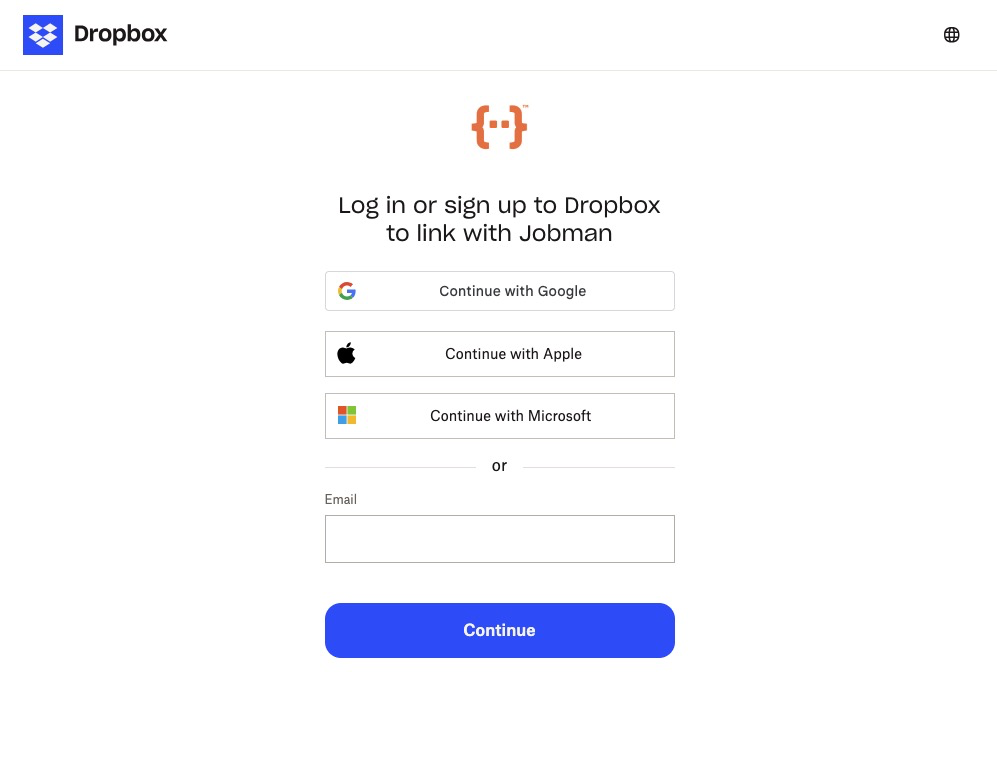
After clicking Connect to Dropbox, you will be redirected to login to Dropbox:
-
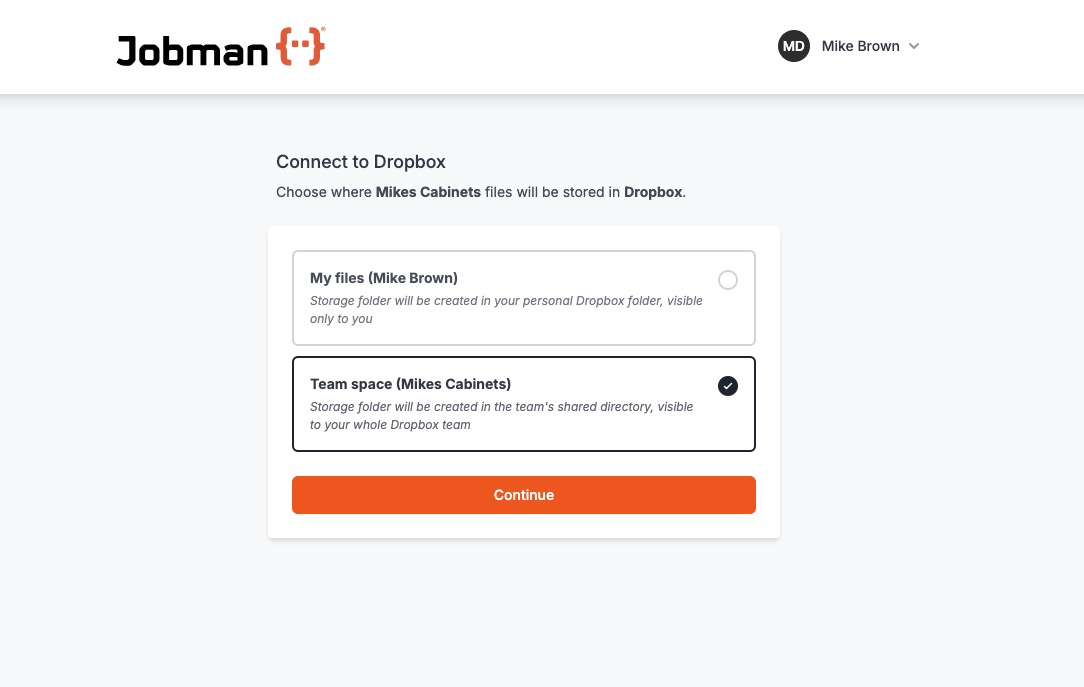
After logging in, you can choose whether to connect to a personal Dropbox account, or a Team space. Choose Team space:
-
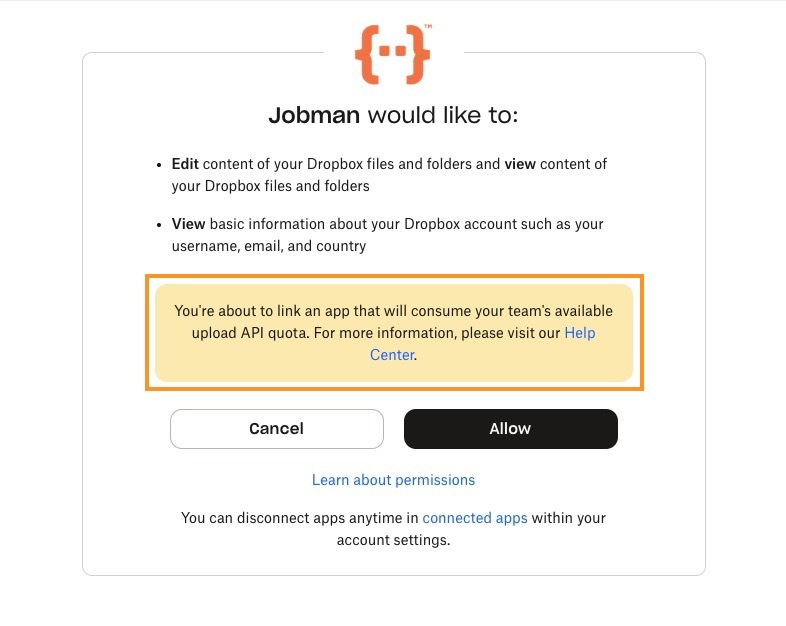
When you are authorising the connection to a business account, Dropbox will warn you that this app will consume the team's available upload API quota. Please note that this is managed on Dropbox's end and is determined by your Dropbox Business Plan.
Click Allow:
-
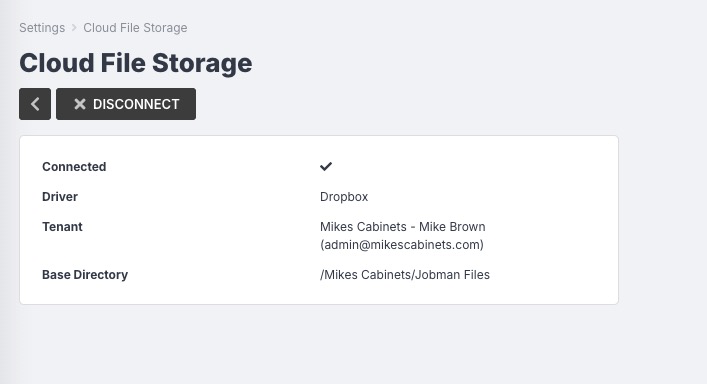
Once you have followed the prompts, you should see in Jobman that there is a tick next to Connected, and the option to disconnect:
For more information, please see the following: