
How to Adjust Discount and Profit Margin in a Quote
Easily adjust profit margin and discount levels at each level of your quoting, to ensure visibility and profitability in your business.
In this article:
Discount and Profit Margin - What's the Difference?
How to Adjust Profit Margin in a Quote
How to Adjust Discounts in a Quote
Discount and Profit Margin - What's the Difference?
Jobman is designed for profit-driven quoting. If you set a profit margin for your organisation, Jobman will automatically calculate the price of your products, materials, labour, etc., so that you are guaranteed that profit margin against your cost, wastage, and overhead.
Also called true profit, "profit margin" refers to the percentage of your revenue (sell price) that is profit for your business.
Profit Margin vs Profit Mark-up
Mark up percentage is proportionate to an item's cost, whereas margin percentage is proportionate to your revenue.
For example, if you buy a product for $10 and sell it for $12, that $2 difference gives you a 20% mark-up (2 out of 10), but only a 16.66% profit margin (2 out of 12).
Jobman is set up to use margin percentage, not mark up percentage. You can use an online margin calculator to help you work out your margin percentage based on cost and revenue amounts.
From a business logic perspective, it is always better to adjust profit margin in your quotes, rather than discount percentages.
How to Adjust Profit Margin in a Quote
Your default profit margin is configured in Settings > Catalogue > Pricing > Pricing Defaults:
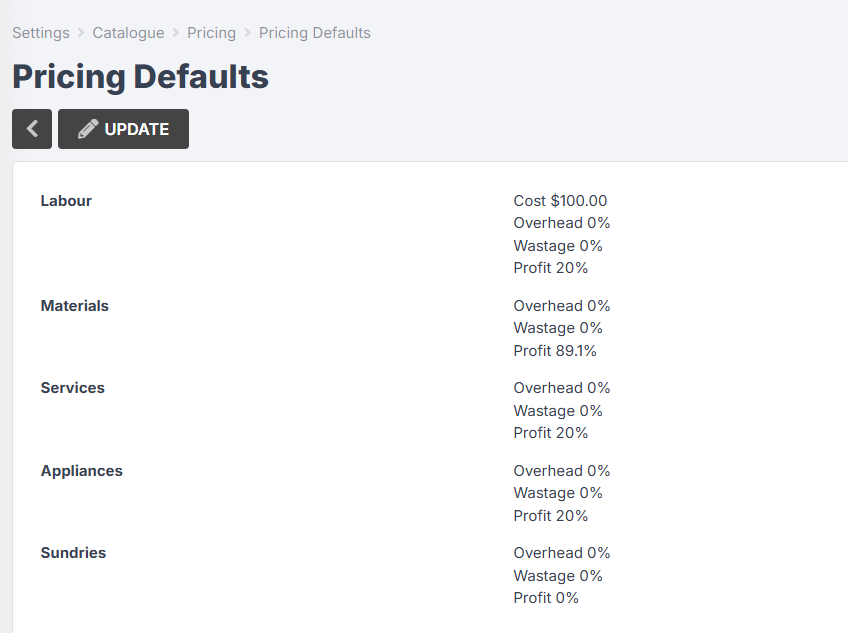
When creating a quote, you should see the default profit margin applied to your items and products.
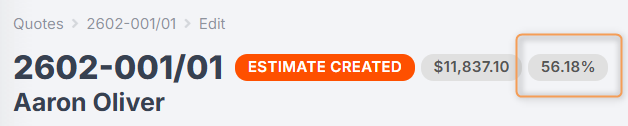
You can adjust your profit margin for the overall quote (recommended) by clicking on the percentage icon at the top:
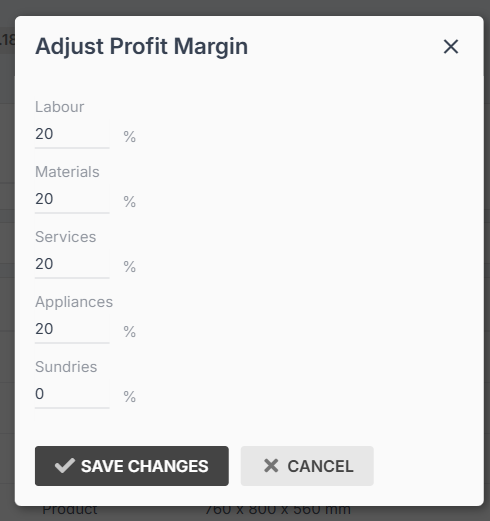
Enter in your new percentages, and Save Changes.
This will then recalculate your quote items and products according to the new margins.
In Jobman, every quote has four levels: Sections, Items, Lines (Products), and Product Parts (or Components).
You cannot alter profit margin for Sections, Items, or Products.
However, you can alter the profit margin of a Line Item, Material, Service, Appliance, Labour Operation, or the individual parts/components of a product (by clicking into the product):
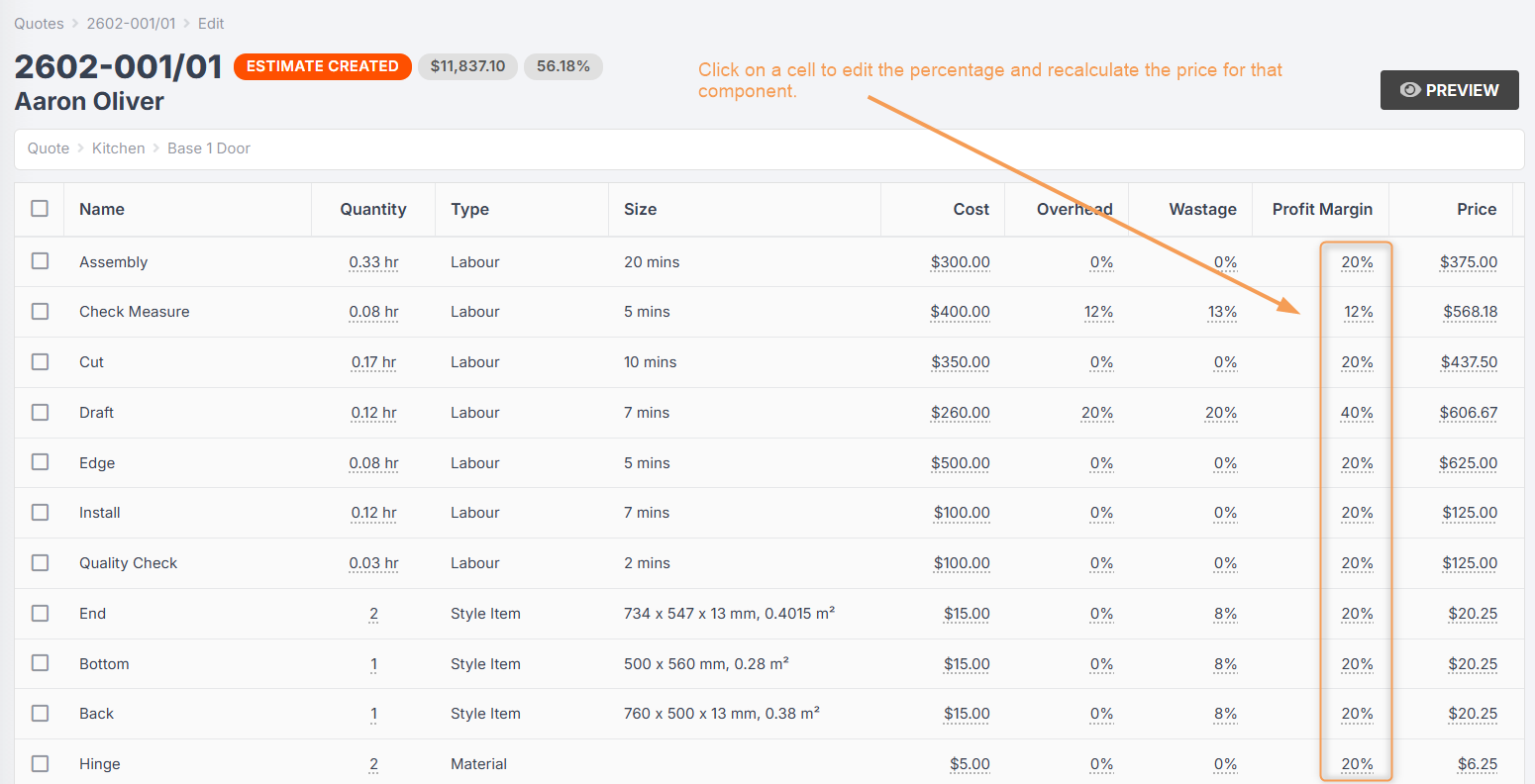
This is recommended, for example, if you have a discount set up for a quote, but you want to sell a specific component at full-price or a lesser discount.
How to Adjust Discounts in a Quote
By default, the discount on a quote will be set to 0%.
You can set a default discount for specific contact types (e.g. Builders), or individual contacts. If you do, this discount percentage will automatically be applied when you create a quote for that contact/contact type.
You can also apply a discount to an individual quote at the item, line, or component level:

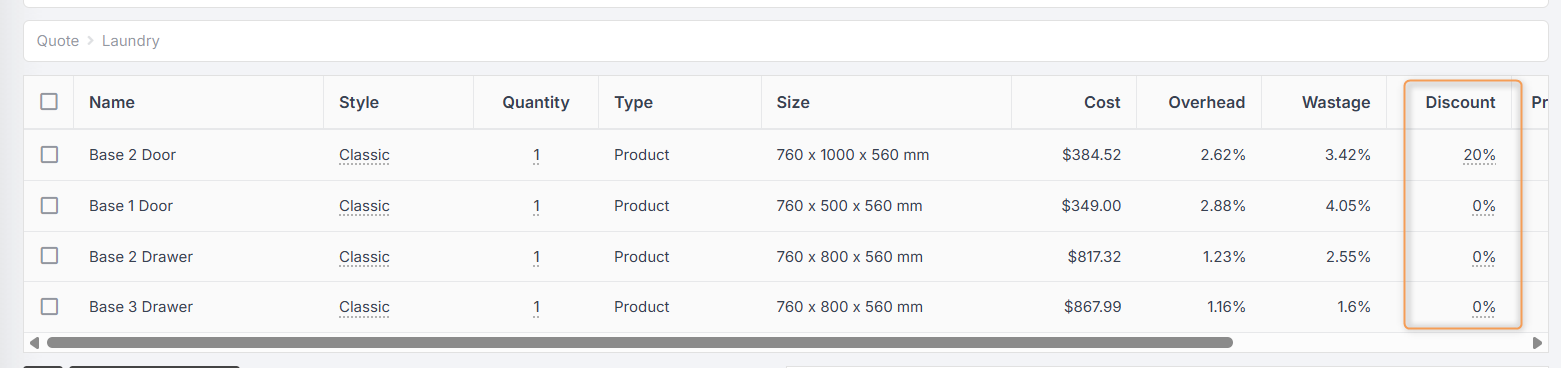
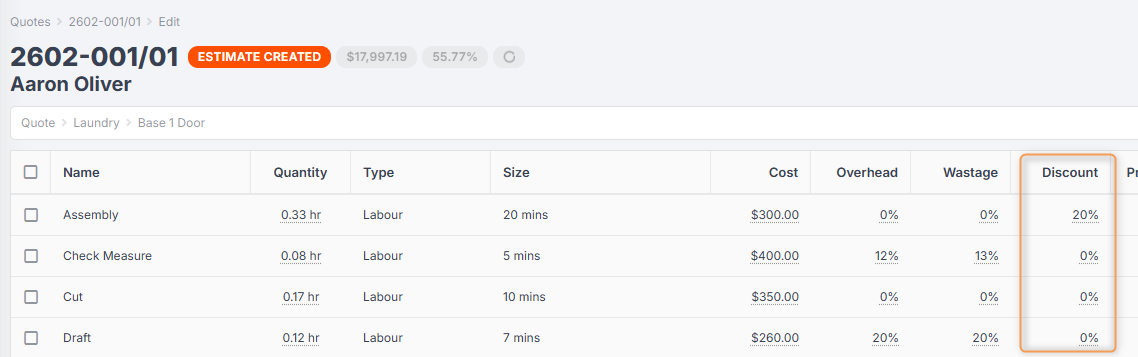
However, these discounts work hierarchically: if you set a discount at the item level, it cannot be overridden at the line or component level.
For example: you set a 10% discount on your kitchen. You cannot reduce the discount to 0% for an individual product or part inside that kitchen - it will automatically change back to 10%.
You can increase the discount for lines or components inside the item - but the discounts will compound.
For example: you set a 10% discount on your kitchen. You want to increase the discount for your Base 1 Door cabinet to 20%, so you click into the kitchen and type "20%" on the Base 1 Door. However, it will change to 28%:

If you set a discount at the contact or item level and want to make changes to individual products, lines, or product parts inside the quote, we recommend you adjust the profit margin instead.
You can also create a discount as its own item or line inside a quote.