
CAD/CAM Integration - Mozaik
This article is for information specific to Jobman's integration with Mozaik. It covers how to set up SKUs for hardware items and panel products in Mozaik.
For more general information on getting your integration set up, see How to Connect Your CAD/CAM Software
For more information on materials, see Managing Job Resource Materials
What file type do I need to export from Mozaik to upload to Jobman quotes and jobs?
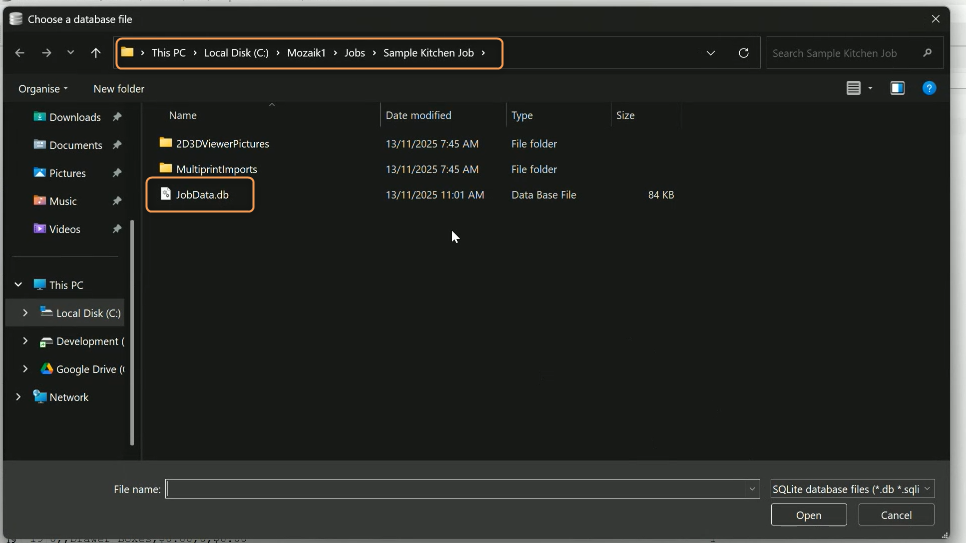
You will need a .db file, which you can export from your Mozaik job file.
In this article:
How to Set Up Panel Product SKUs in Mozaik for Importing to Jobman
How to Set Up Hardware SKUs in Mozaik for Importing to Jobman
How to Export a Database (.db) File from Mozaik
How to Set Up Panel Product SKUs in Mozaik for Importing to Jobman
Note: Your SKUs must match between Mozaik and Jobman for the import to work.
To set up your panel product SKUs in Mozaik, follow these steps:
-
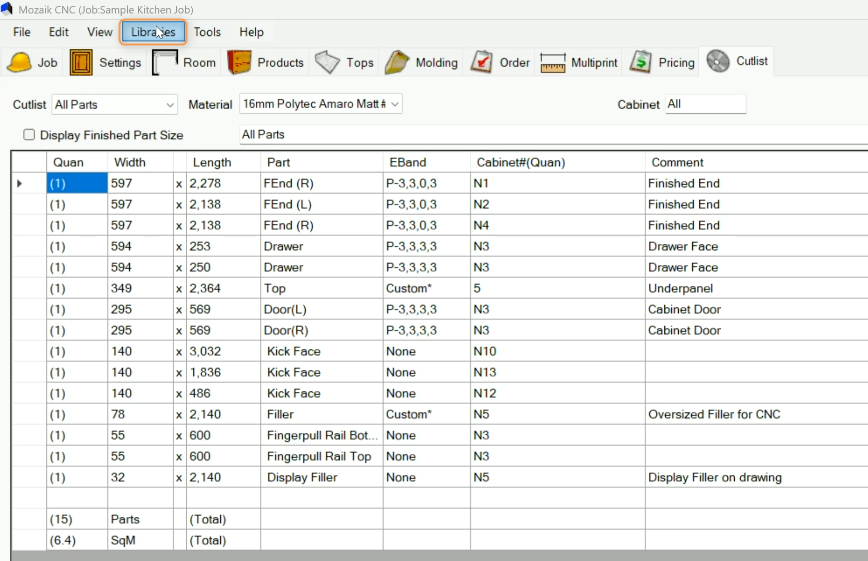
In Mozaik, click on Libraries:
-
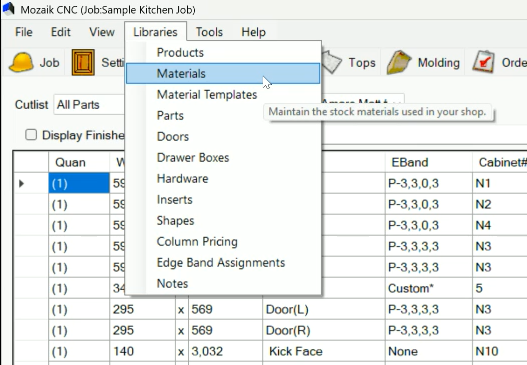
Select Materials from the drop-down:
-
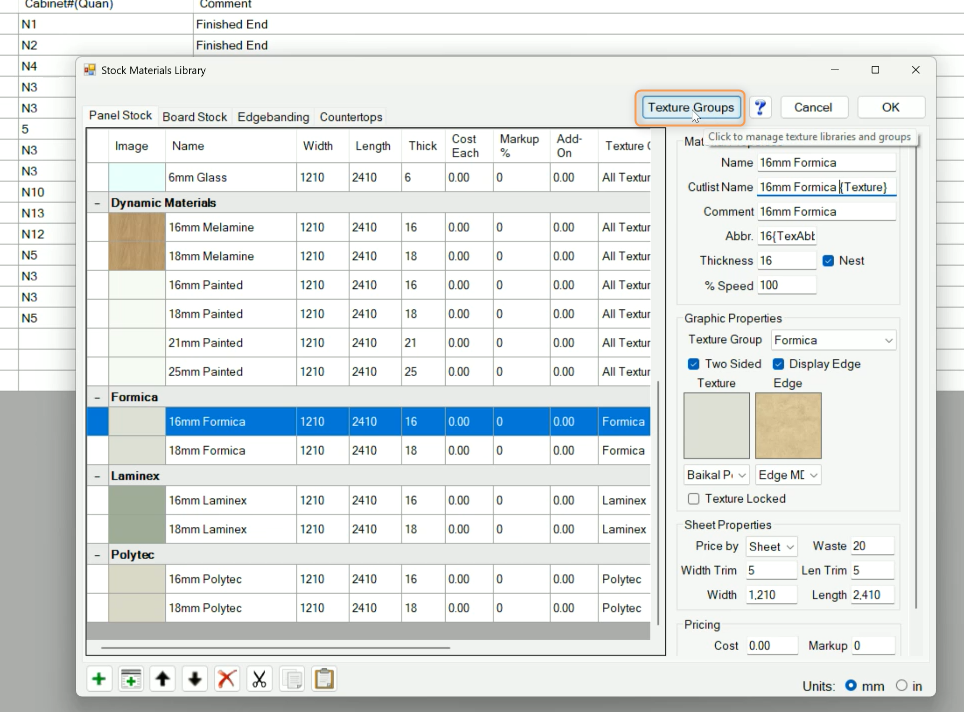
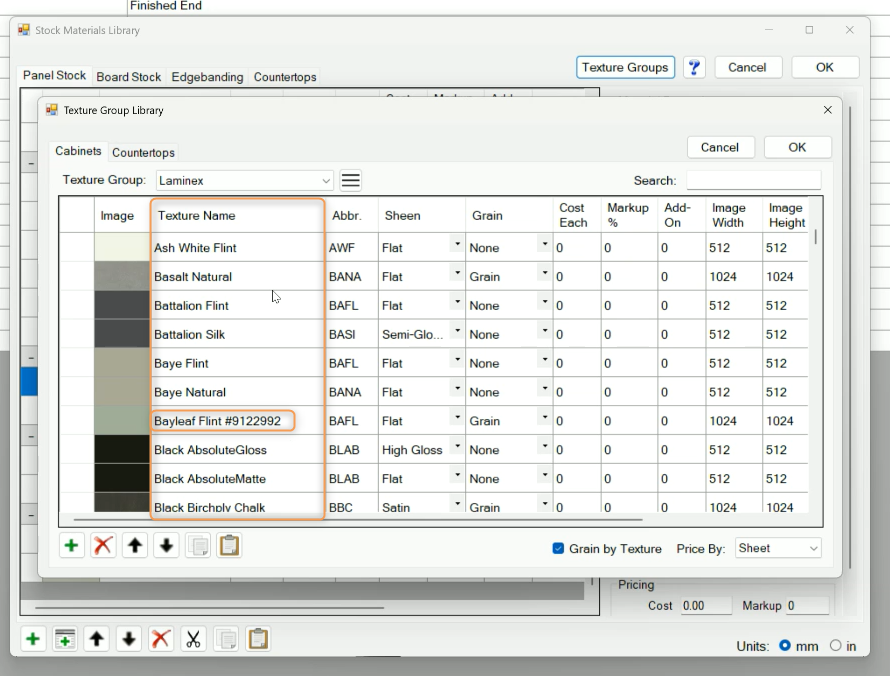
In the window that pops up, click Texture Groups:
-
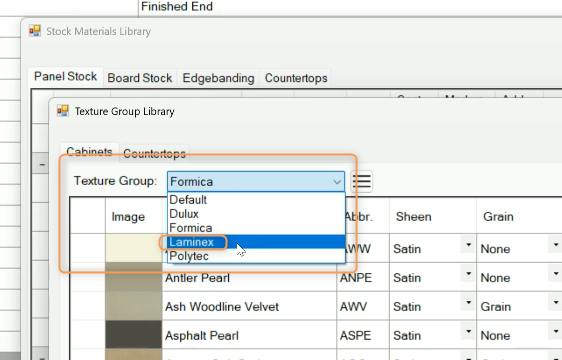
Select your texture group (brand) from the drop-down, e.g. "Laminex":
-
In the materials list shown, in the Texture Name column, click to edit each material so that the SKU appears after the name as shown. You must enter a hash (#) symbol before the SKU number, e.g. #123:
How to Set Up Hardware SKUs in Mozaik for Importing to Jobman
Note: Your SKUs must match between Mozaik and Jobman for the import to work.
To set up your hardware SKUs in Mozaik, follow these steps:
-
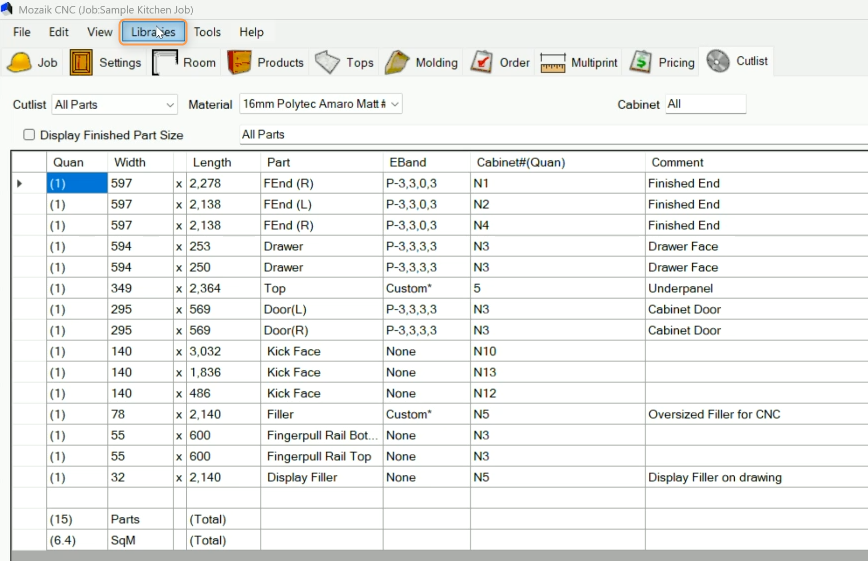
In Mozaik, click on Libraries:
-
Select Hardware from the drop-down:

-
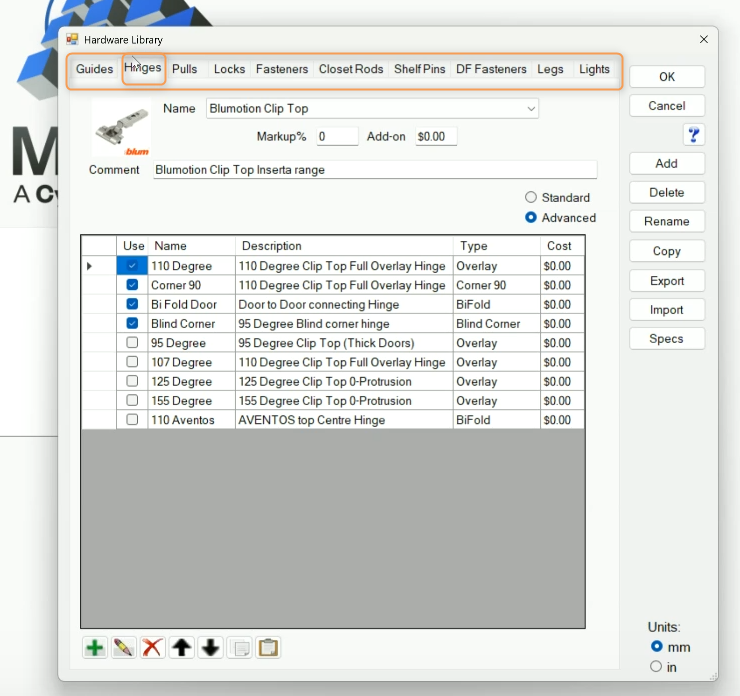
In the window that pops up, click into the correct tab for the type of hardware you want, e.g. Hinges:
-
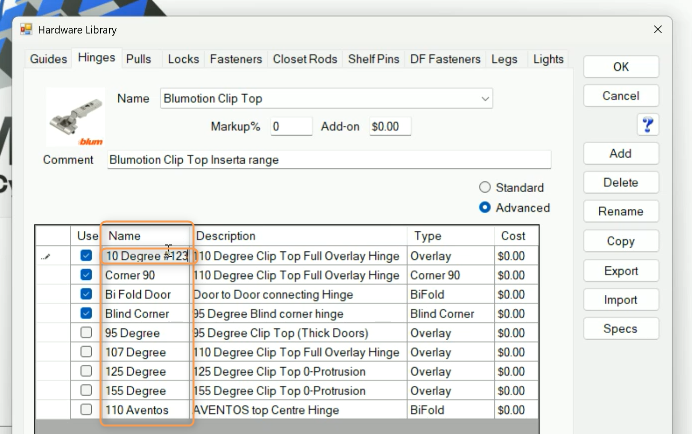
In the Name column, click to edit each material so that the SKU appears after the name as shown. You must enter a hash (#) symbol before the SKU number, e.g. #123:

How to Export a Database (.db) File from Mozaik
To export a .db file from Mozaik, follow these steps:
- Click into your job in Mozaik.
-
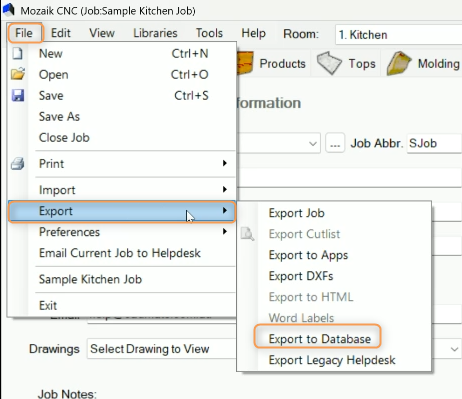
Click File > Export > Export to Database:
-
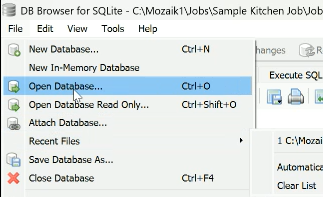
Once the file has been generated, you can view it by clicking File > Open Database...
- Import your file into Jobman!
