How to Delete or Restore Catalogue Materials via Import
Once you have set up your catalogue materials in Jobman, there may be occasions when you need to mass-delete or mass-restore a large number of materials at once. You can do this via exporting and importing by following the steps below:
-
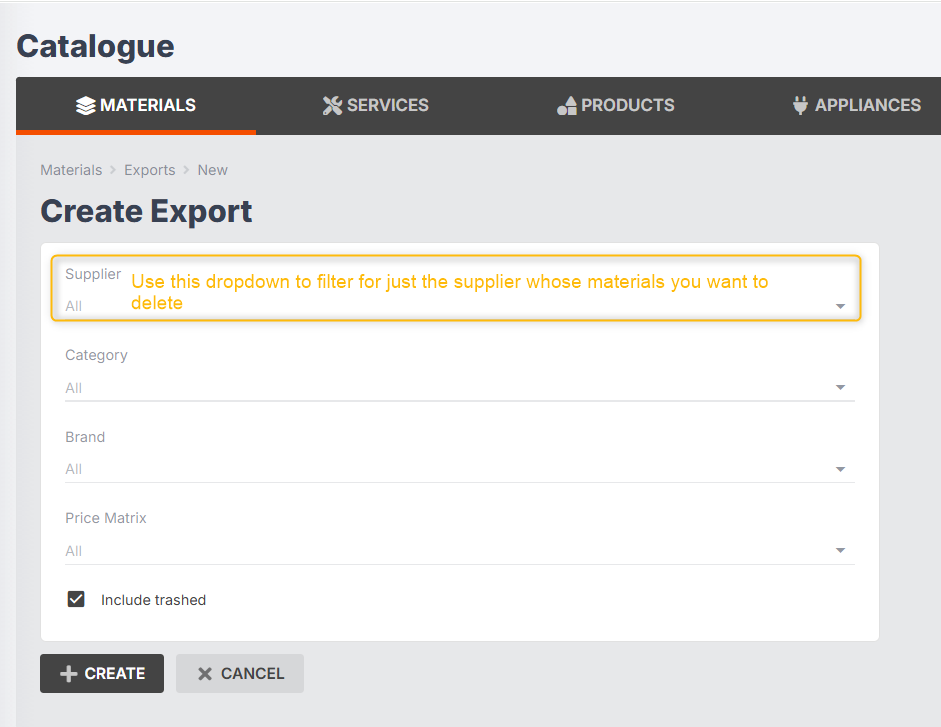
Export your catalogue, making sure to tick Include trashed:
-
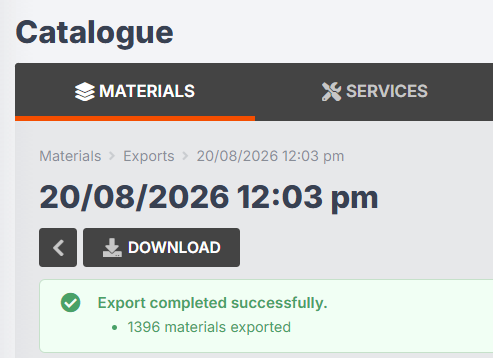
Download the exported file.
-
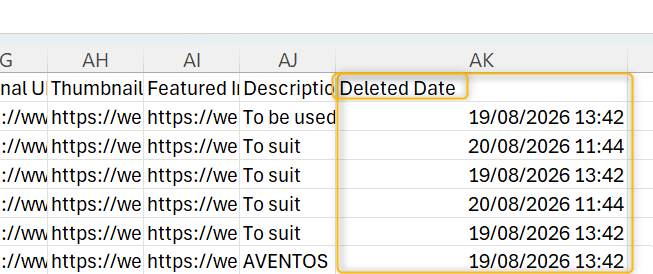
You will see a column in this file on the far right called Deleted Date. This column will be blank for active materials, or contain a date for deleted materials.
-
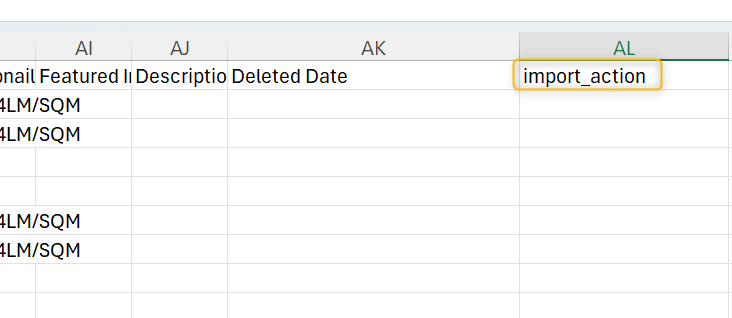
Add a new column to your file, called import_action:
-
For each material you want to restore, type "restore" in the import_action cell. For each material you want to delete, type "delete" in the import_action cell.
For materials you want to leave in their current state, you can leave the cell blank, or remove these rows from the CSV entirely, which will prevent those materials being updated again, and will speed up the import.
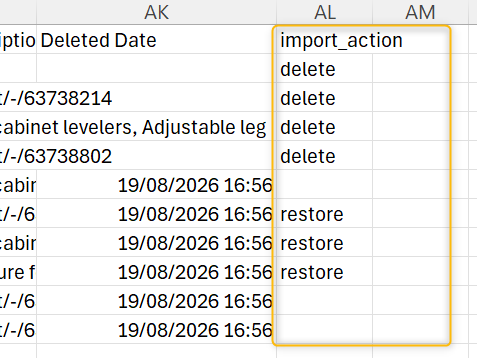
- Please note, the fields are case sensitive, so write import_action, delete and restore exactly as shown.
- Import the edited CSV file into your catalogue.
-
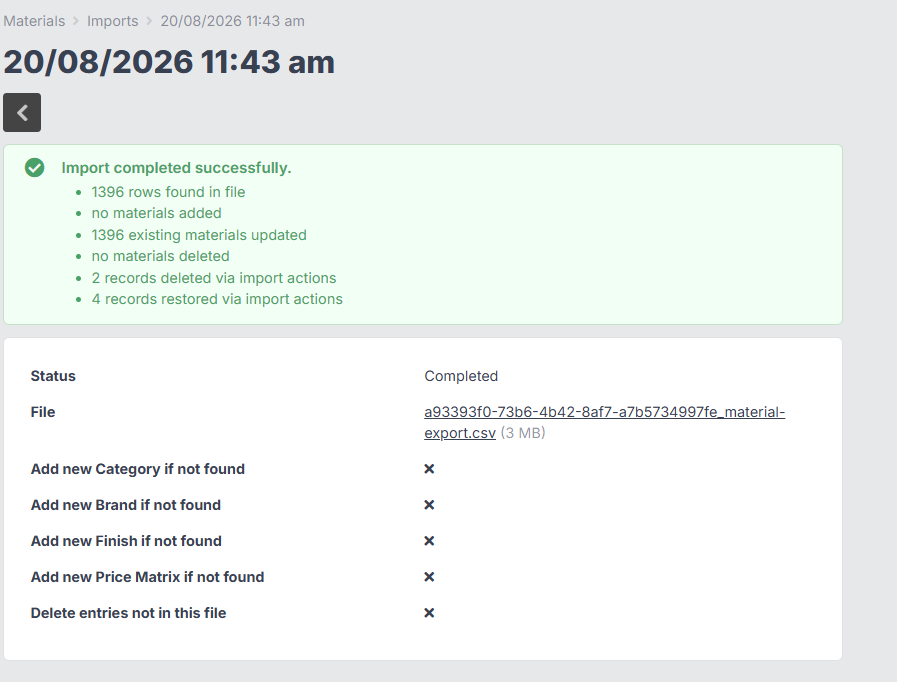
Your import summary will tell you how many materials have been deleted or restored!