
Copy to Work Orders: Completed and N/A Tasks, Target Dates and Labour Centres
When creating a work order, you can choose to copy certain information from the parent job.
To copy to work orders, follow these steps:
- First, create the work order as you normally would.
-
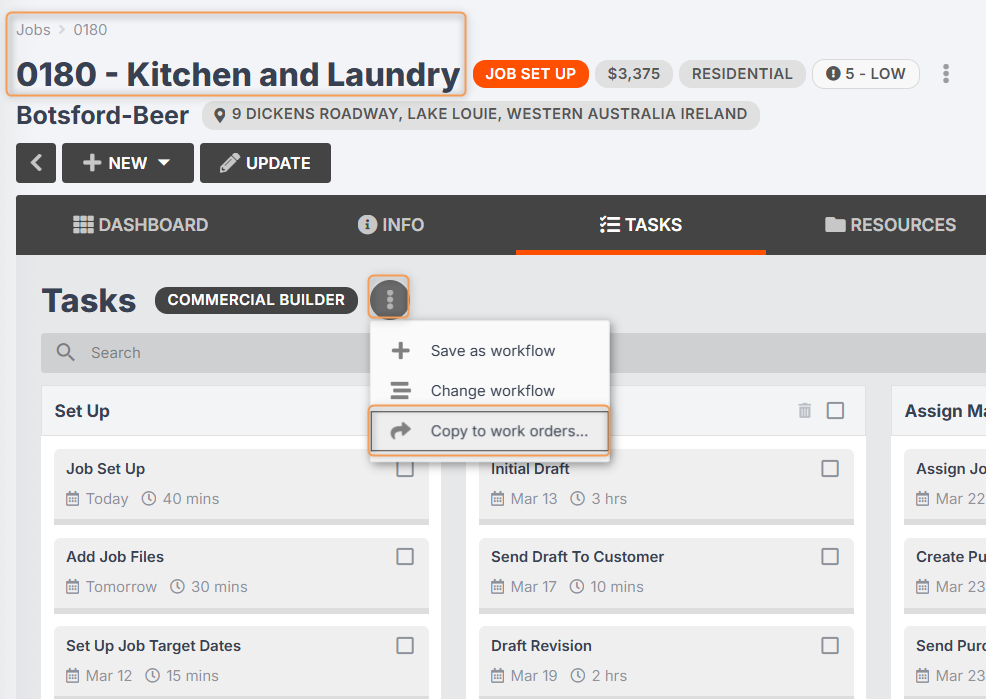
Return to your parent job, then go to Tasks and click the three-dot menu next to the workflow name:
-
Click Copy to work orders...
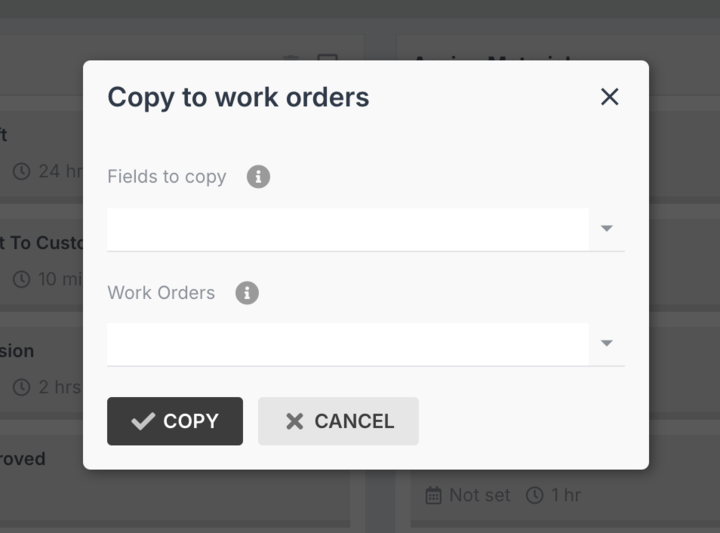
- From the Fields to copy drop-down, select one or more of the following: Completed, Labour Centre, Not Applicable, Target Date.
- From the Work Orders drop-down, select one or more work orders to copy the information to. Note: Only work orders which have been generated from this parent job will appear in the drop-down.
- Click Copy.
Your work order will now show the same information in its Tasks tab as appears in your parent job.
Please Note: Information will only copy to your work order if the tasks are matching, i.e. if your work order has the same workflow as the parent job.
If your work order has a different workflow to the parent job, its tasks will only match the parent job if:
- The task name is the same.
- The task appears in the same workflow step.
- The task appears in the same workflow status.
- The task has the same operation.
If you have already begun to edit your work order tasks (e.g. changing the workflow, assigning members, marking tasks complete or N/A), these changes will not be overridden when you copy from the parent job.
We recommend copying any relevant information immediately after creating the work order, then making any further changes from there.
- Copy Completed: If certain tasks in your parent job workflow have already been marked complete prior to copying, these tasks will now be marked complete in your work order workflow, and will be removed from your agenda screens, target calendar, etc.
- Copy Labour Centre: Your work order tasks will now be assigned to the same labour centre(s) as your matching parent order tasks. Your capacity will be updated accordingly.
- Copy Not Applicable: If certain tasks in your parent job workflow have already been marked not applicable prior to copying, these tasks will now be marked not applicable in your work order workflow. They will be hidden from your Tasks tab, and removed from your agenda screens, target calendar, etc.
- Copy Target Date: Your workflow tasks will now have the same target dates as the corresponding parent job tasks. Your target calendar will be updated accordingly.